

AI Topics
Feature video
Who is this for?
- Teams who want to track recurring themes in their calls.
- Managers who structure a cross-cutting reading by domain, objection or business signal.
Permissions and licenses
- Available from the AI Meeting plan.
- Viewing is open to everyone; creating, editing and deleting are restricted to people allowed to manage AI Topics.
- Without the required plan, the page stays readable but read-only.
- The analytics Topics tab needs the AI Coaching add-on to reach the analytics, then the AI Meeting plan.
How to use it
Open the page
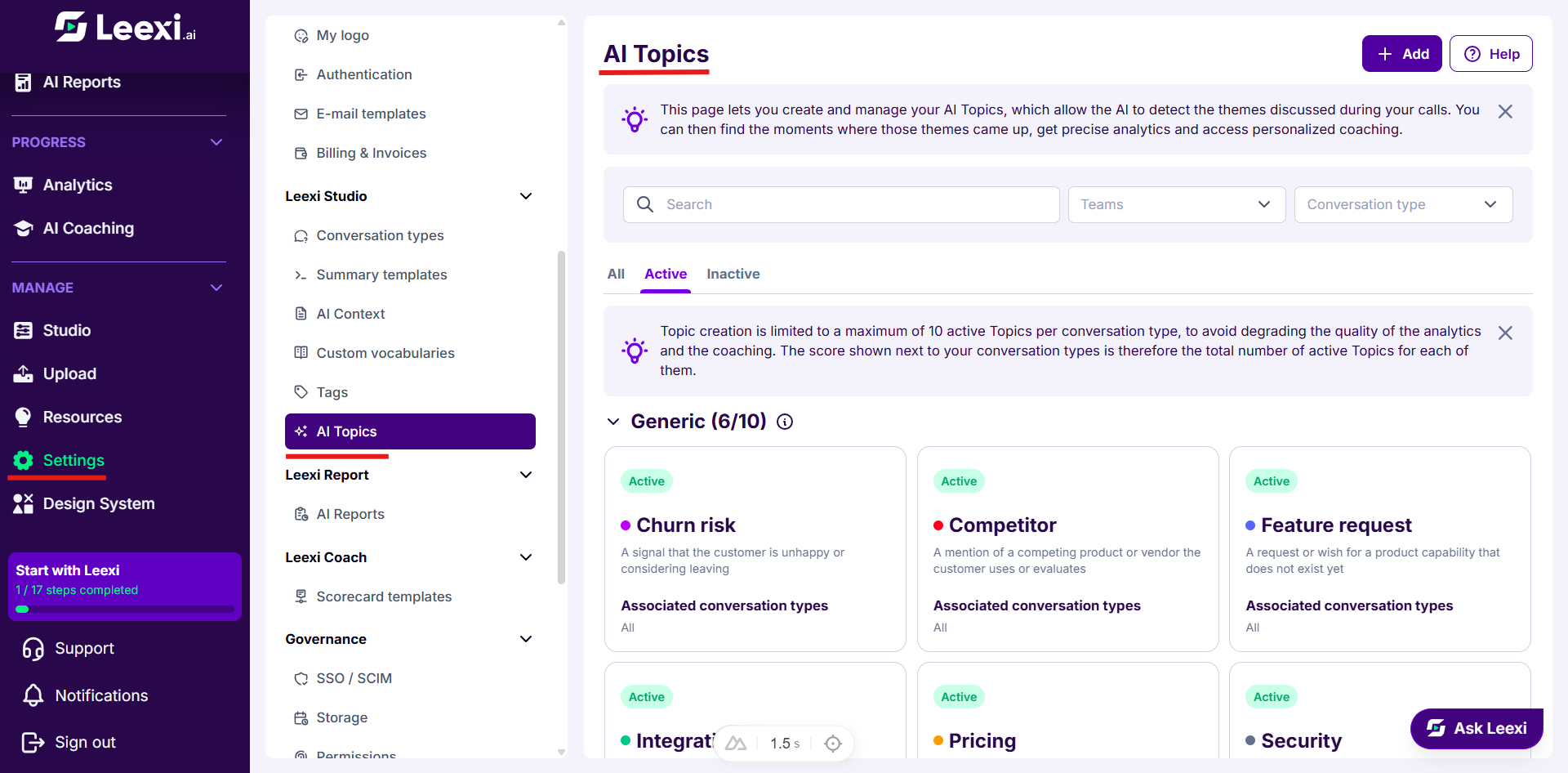
Go to Settings > Leexi Studio > AI Topics.
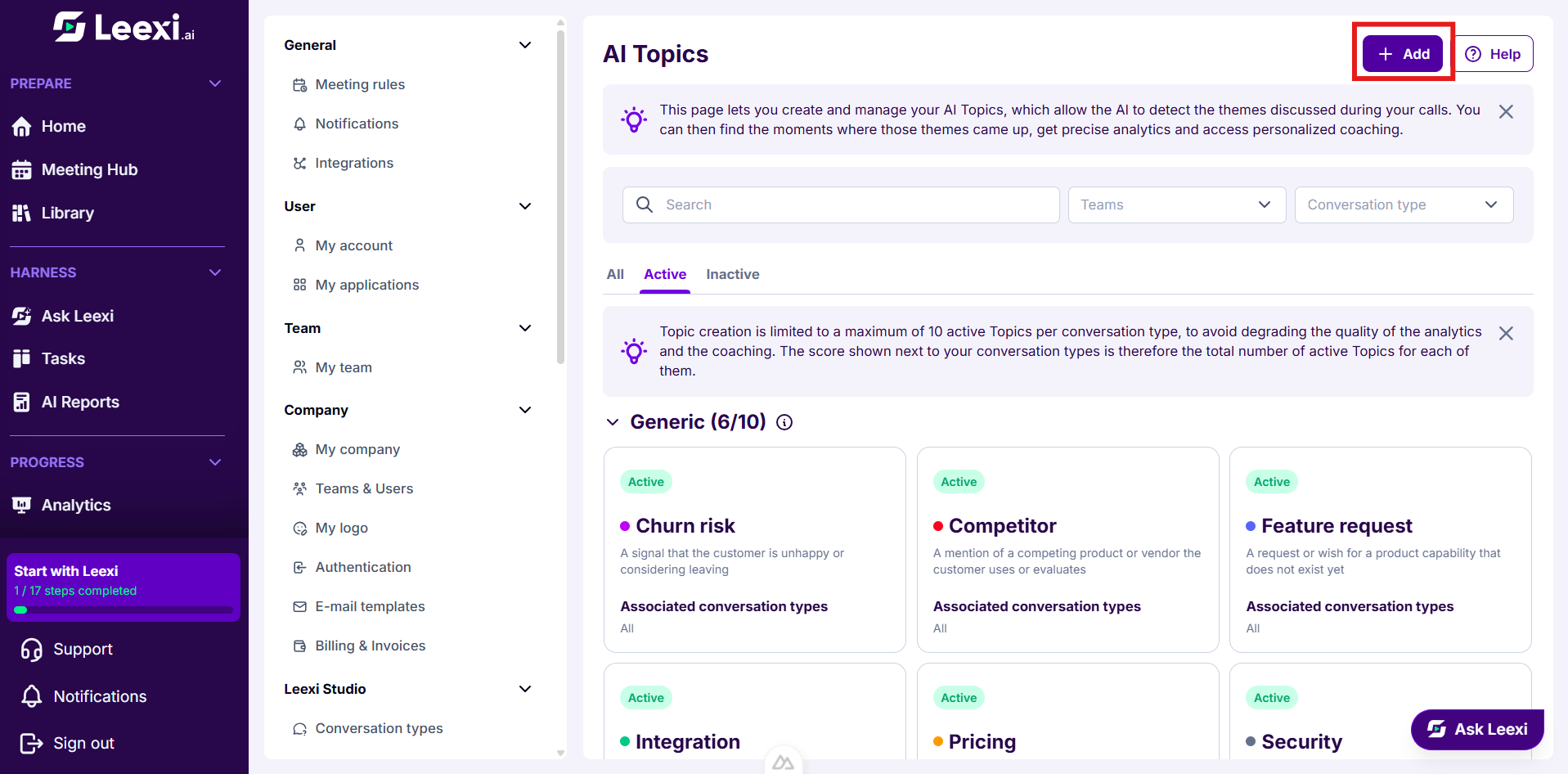
AI Topics are grouped by conversation type, in foldable blocks. The All, Active and Inactive tabs filter the list, and a search bar together with the Team and Conversation type filters helps find a specific theme.
Create an AI Topic
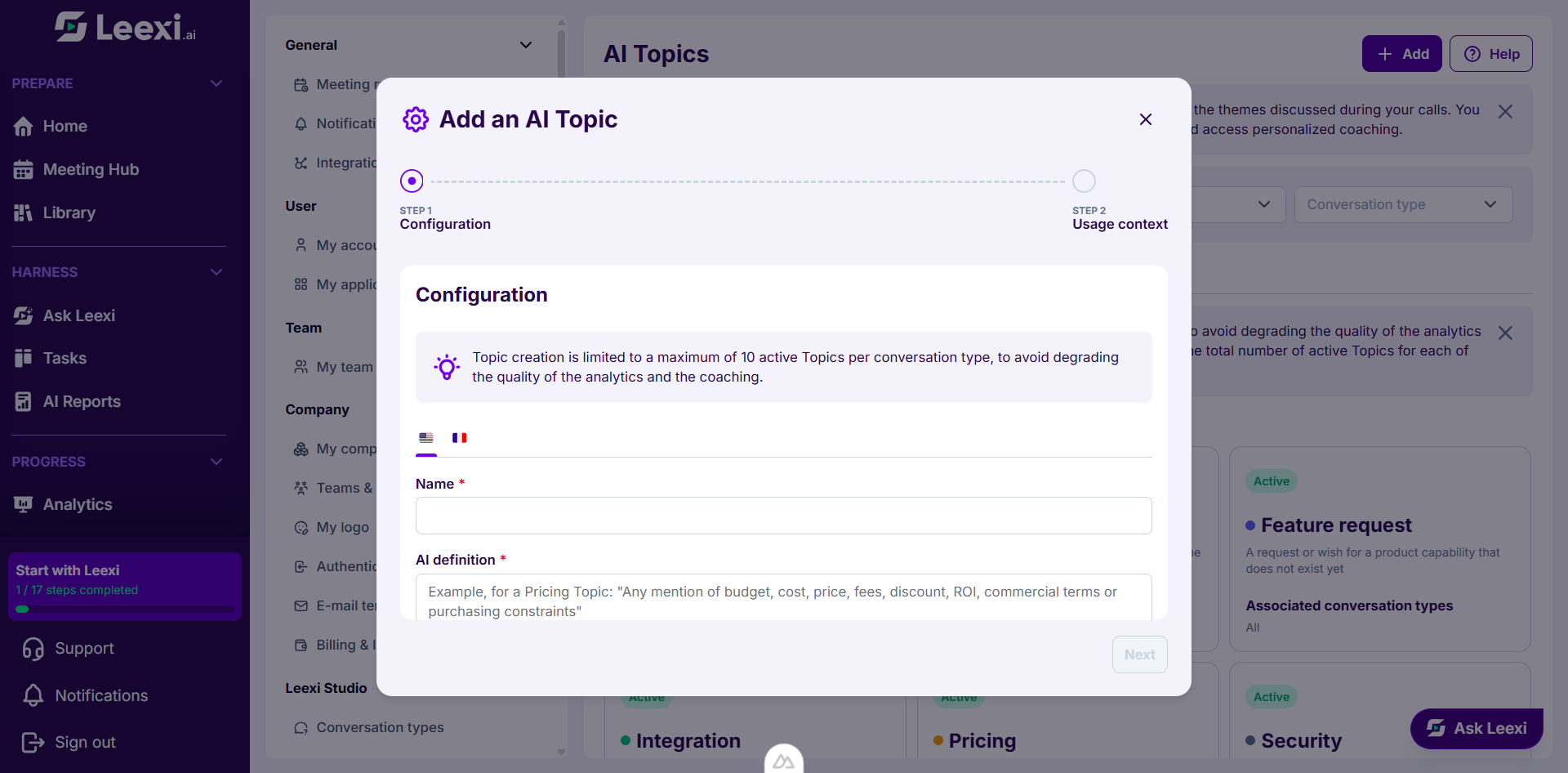
Click Add. Creation happens in two steps.
Configuration covers the theme's identity:
- Name: the label shown in the transcript, the filters and the analytics.
- Choose a color: it is used to highlight the detected passages.
- AI definition: the description used as the detection prompt. This is the heart of the setting.
Usage context attaches the theme to one or more Associated conversation types, and lets you enable it by default.
Write a good AI definition
Detection relies on your description of the theme, not on a list of keywords. Describe what the theme covers, in plain language and broadly.
For example, for a Pricing AI Topic: "Any mention of budget, cost, price, fees, discount, ROI, commercial terms or purchasing constraints".
The name and the definition are translatable: each language in your workspace can have its own wording.
Respect the active AI Topics limit
A conversation type cannot exceed 10 active AI Topics. This limit protects the quality of the analytics and the coaching.
On the Active tab, each conversation type shows its counter as n/10. A conversation type at full capacity cannot take a new active theme: deactivate one to make room, or create the theme as inactive.
Manage existing AI Topics
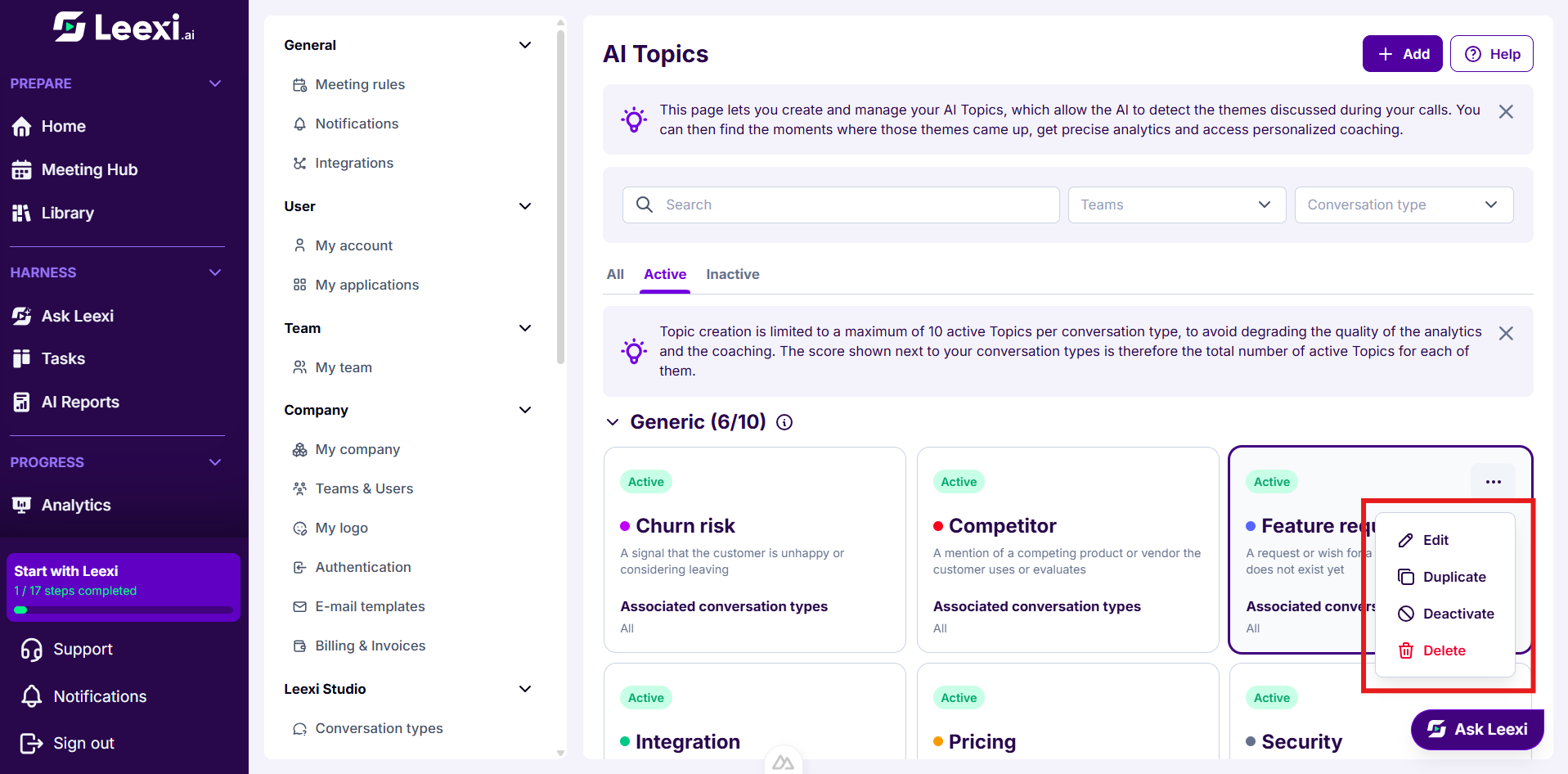
Each card lets you activate or deactivate the theme, edit it, duplicate it or delete it.
Duplicating carries over the definition and the conversation types, leaving the name empty and dropping the conversation types already at their maximum.
Put AI Topics to work
Once meetings are processed, AI Topics appear in three places:
- On the call page, in the Topics tab of the transcript: each detected theme is listed with its number of occurrences, and the matching passages are highlighted in its colour.
- In the search filters and the saved filters, under the
AI Topicscriterion. - In the analytics, on the
Topicstab.
Going further
- AI Topics gain value when they stay few and well defined: the limit of 10 per conversation type points the same way.
- They complement tags without duplicating their looser logic: a tag is applied by hand, an AI Topic is detected by the AI.
- Attachment goes through conversation types: the conversation type decides where the theme applies.
- Leexi provides default AI Topics that you can use as a starting point.
Frequently asked questions
Things to watch out for
- A definition that is too vague surfaces off-topic passages; one that is too narrow detects almost nothing.
- Themes that overlap heavily make the analysis confusing and use up the limit of 10 for nothing.
- An AI Topic with no attached conversation type is never detected.
- Changing a definition does not reprocess calls already analysed: the effect only applies to later meetings.
- Detection relies on the transcript: a rough transcript degrades the spotting.