

Pause and resume
Feature video
Who is this for?
- Teams that need to protect certain sensitive moments during a meeting.
- Users who want fine-grained control over recording.
Permissions and licenses
- This feature is part of the AI Meeting usage and above.
- Its use depends on the meeting context and the flow supported by the video conferencing platform.
- No global administration role is required to use it in the meeting concerned.
How to use it
Identify the sensitive moment
Identify the segment during which recording should be suspended.
Pause
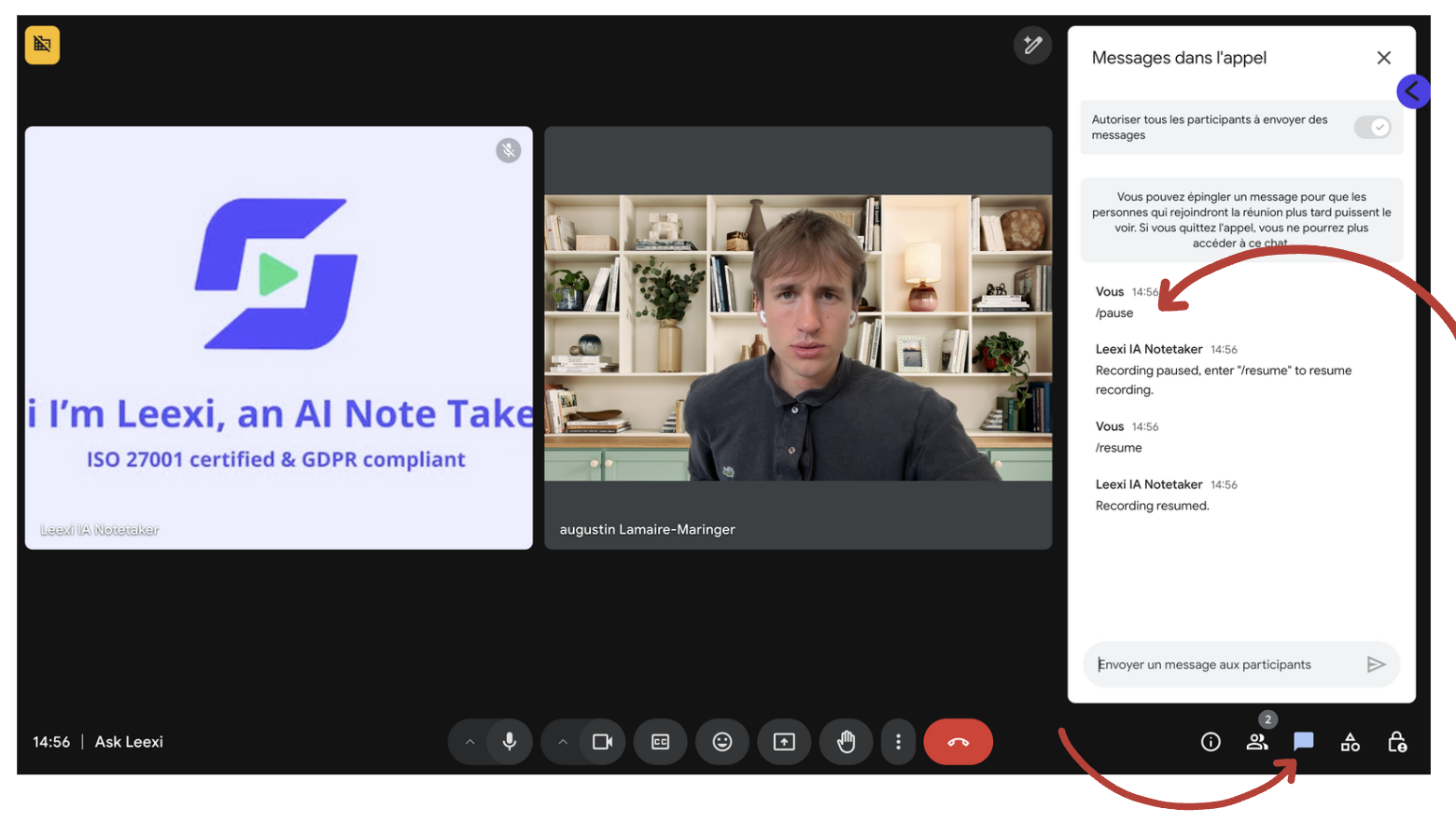
On Google Meet, type /pause in the meeting chat. The assistant immediately stops recording the conversation. This command is available to all participants in a meeting where Leexi is present. The platforms that support it are listed in References › Assistant behavior › Chat commands.
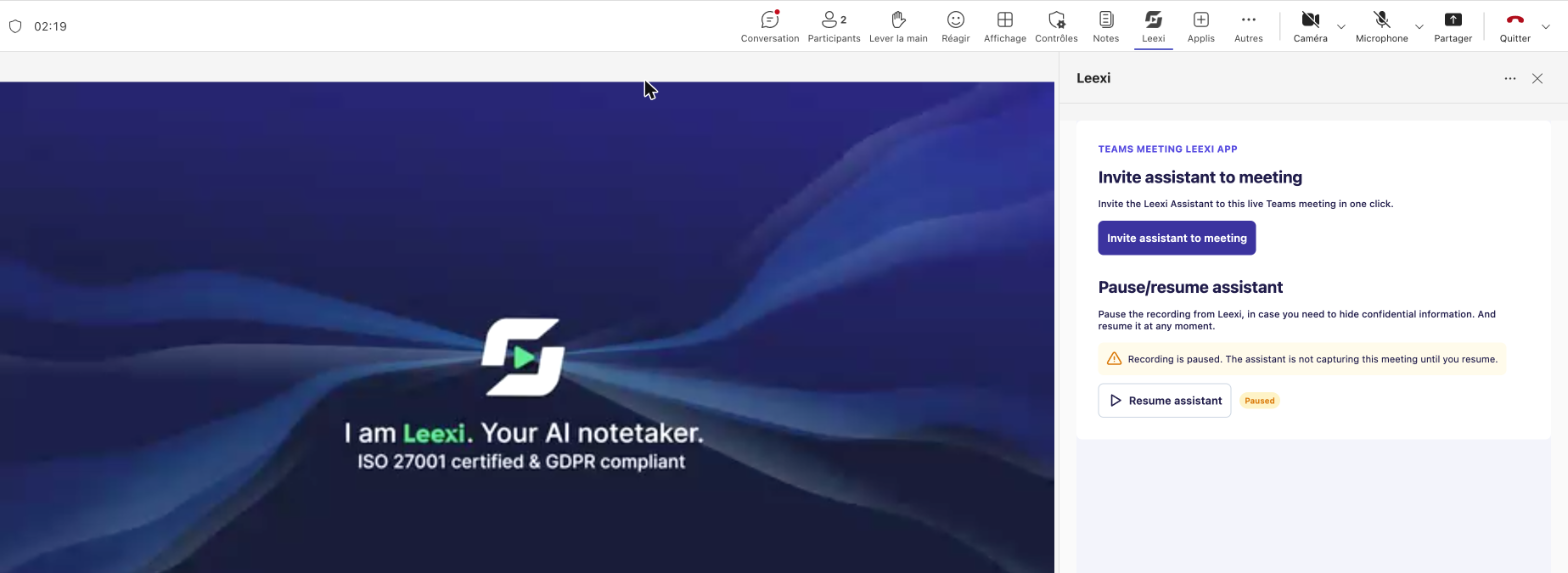
On Microsoft Teams :
- Integrate Leexi with the Teams App. Without this integration, the assistant controls won't be available in Teams.
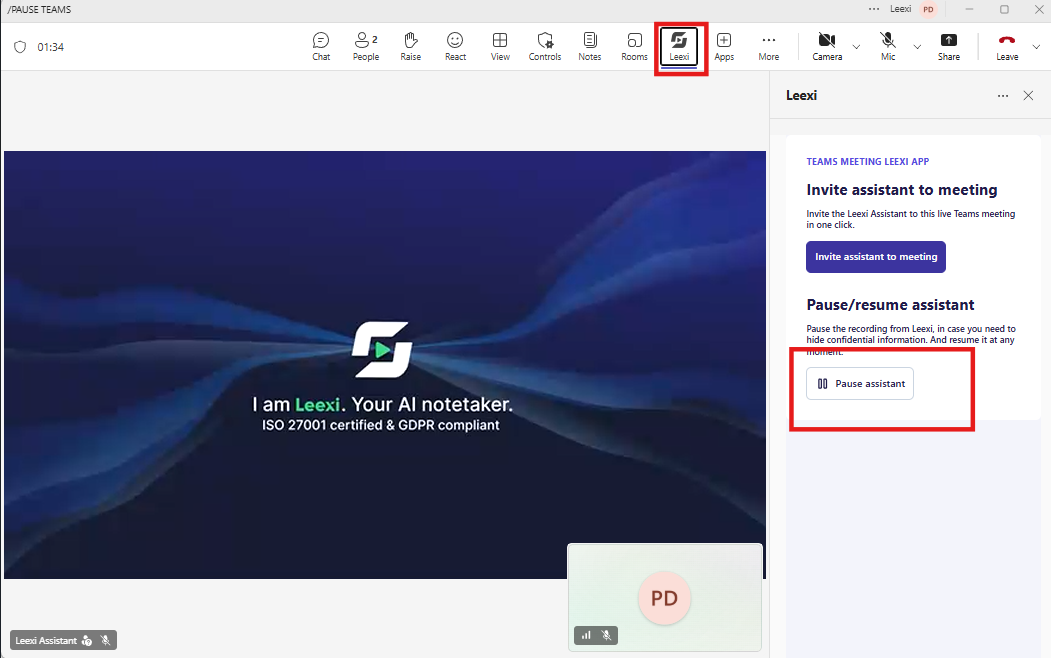
- During the meeting, click Leexi in the Teams meeting toolbar.
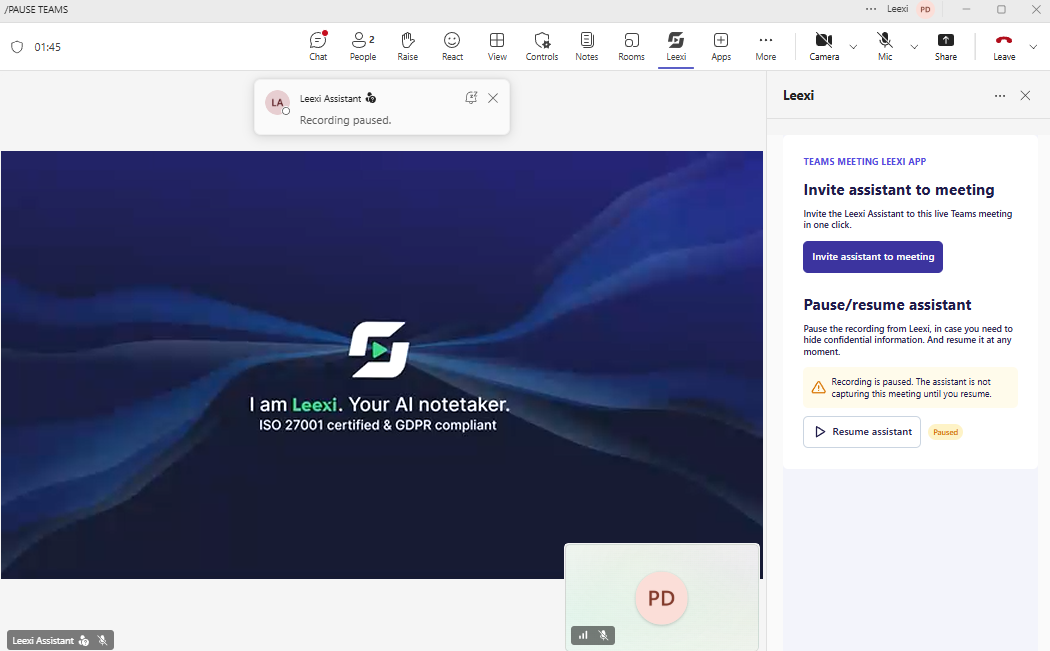
- In the panel that opens, click "Pause assistant". The recording will pause.
Resume recording
On Google Meet, when the sensitive part is over, type /resume in the meeting chat, or click Resume assistant in the Leexi app on Microsoft Teams. The assistant will start recording again from that moment.
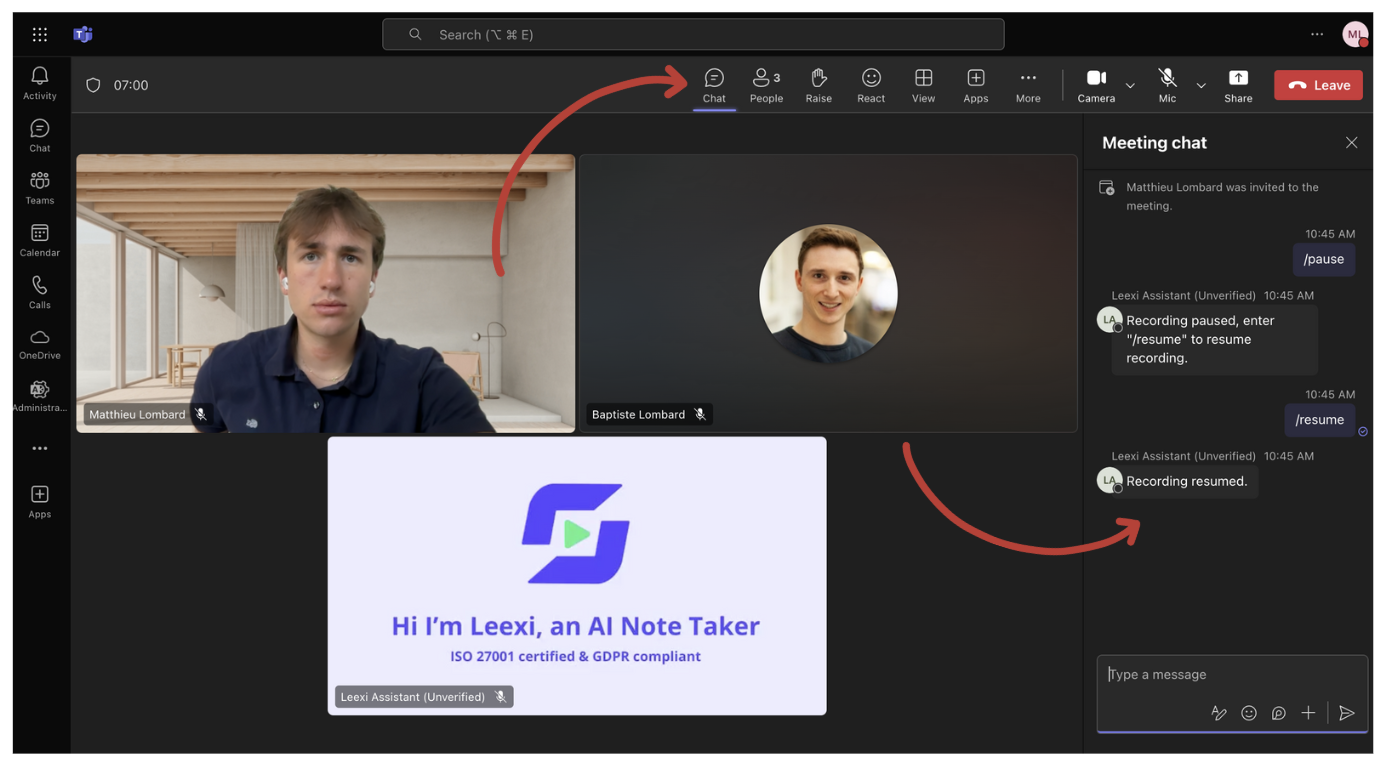
On Microsoft Teams, to resume recording, click Leexi in the meeting toolbar again, then select the option to resume the assistant.
Check the result after the call
Check the call page to confirm that the capture matches your expectations.
Going further
- This feature is useful for sensitive HR, legal, or sales topics.
- It complements sharing and security options without replacing them.
- Its use should remain understood by all internal participants.
Frequently asked questions
/pause in the chat, the assistant points you to the app.Things to watch out for
- A forgotten pause can leave a significant gap in the meeting.
- Check the actual effect after the call before sharing the content.
- Inform participants of how it works if the context requires it.