

Integrations
Feature video
Who is this for?
- All users, for the Personal tab: calendar, CRM, note and task tools attached to their account.
- Administrators allowed to manage integrations, for the Company tab.
- Operations, CRM and IT teams who orchestrate data between tools.
Permissions and licenses
- Requires: AI Meeting Business
- The Company tab only appears if you are allowed to manage integrations.
- The company can forbid personal integrations: the Personal tab then shows a warning and only lists the integrations that are already active.
- CRM, ATS, VoIP, email and task-management integrations require the Business plan; notes, automation, MCP and notifications require the AI Meeting plan.
- Calendar integrations remain available from the lowest plans.
How to use it
Open the page
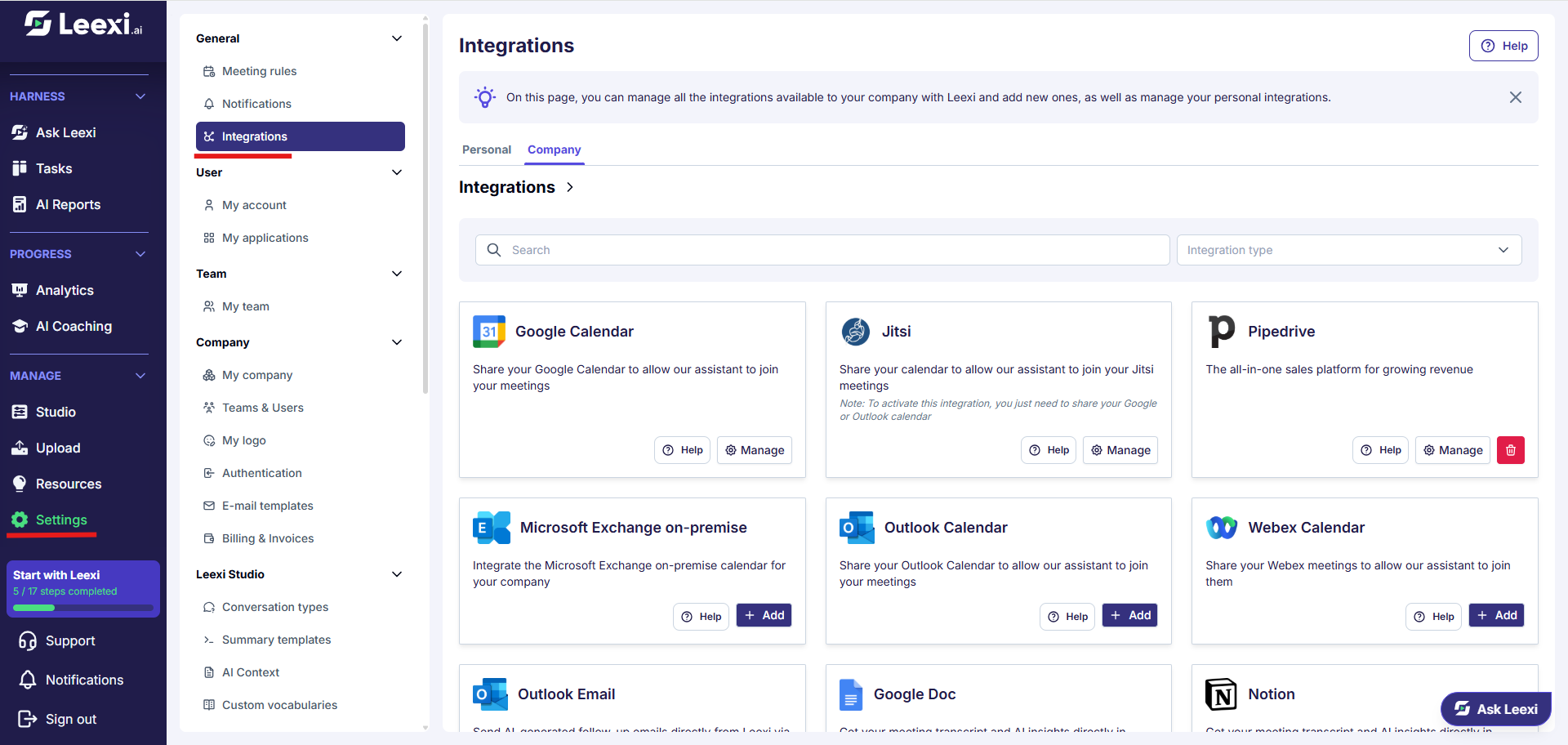
Go to Settings > General > Integrations.
Each tab has its own address. The address without a tab is the one registered with the providers as the authentication return URL: it takes you to the Company tab, or to Personal if you do not have the permissions.
Manage your personal integrations
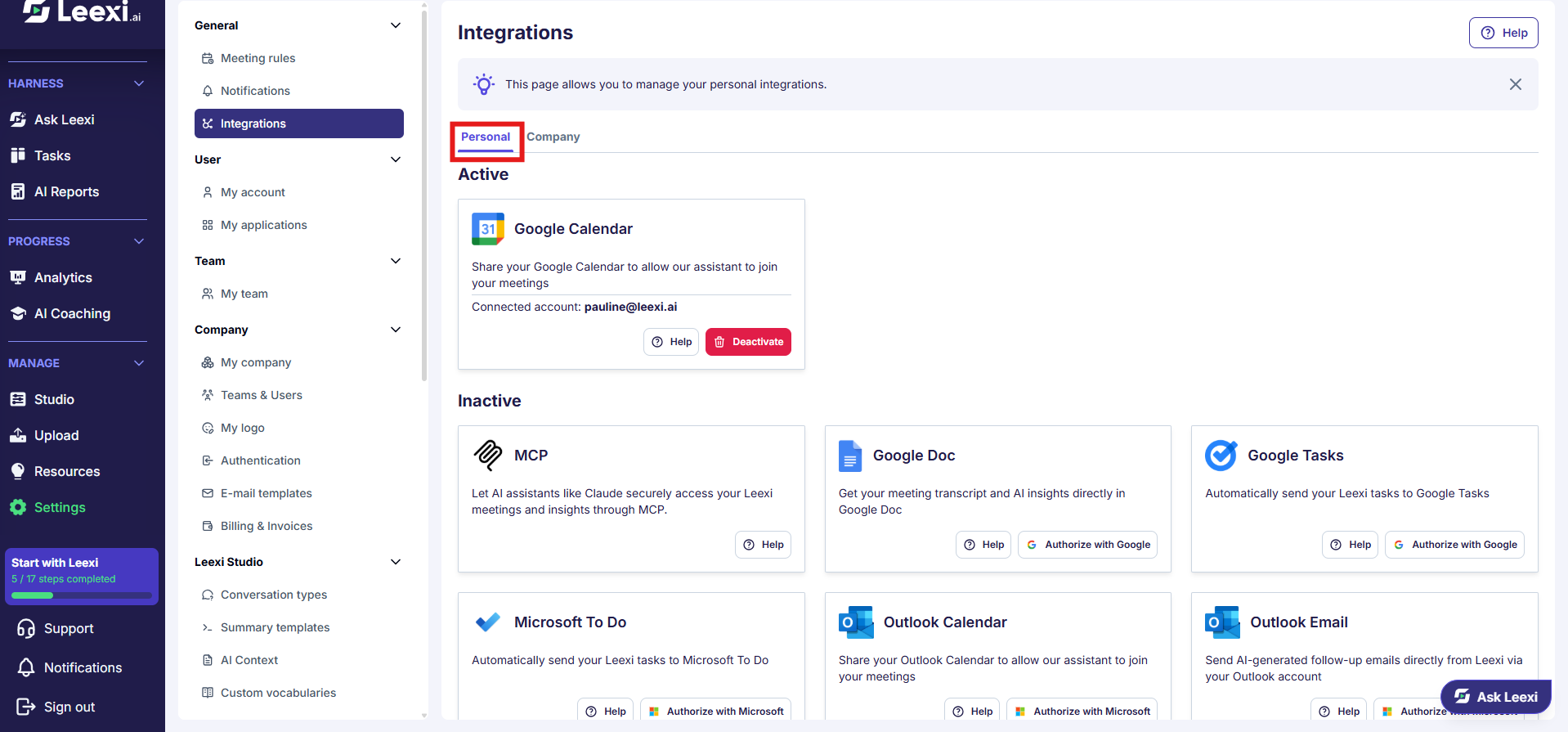
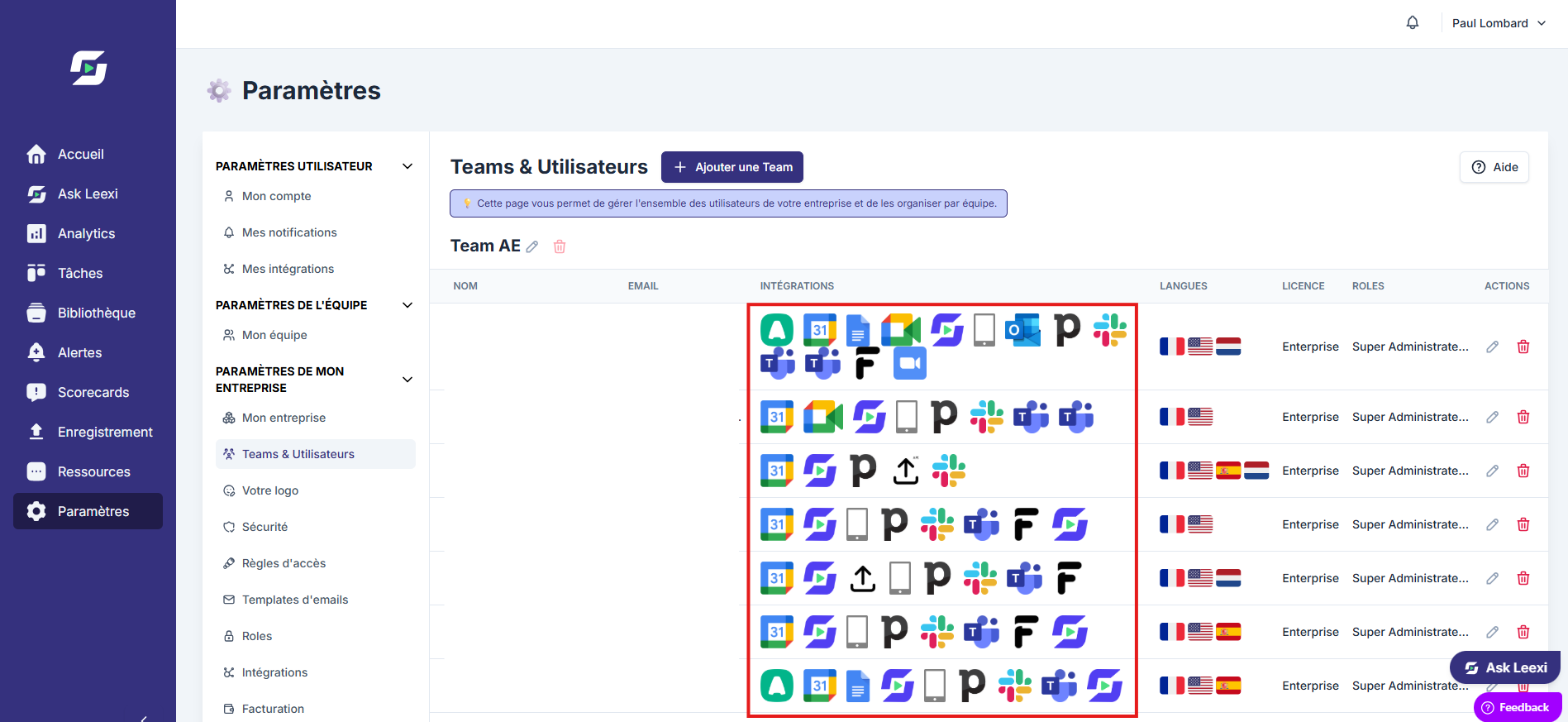
The Personal tab lists your integrations in two groups, Active then Inactive.
Depending on the integration, the card offers to start the authentication with the provider, to paste an access token, or to open the extension store. An active card additionally offers deactivation, and task management tools a Manage button to choose the destination location, the priorities to sync and automatic sending.
AI assistants connected through MCP appear in the same list; each connected application can be revoked individually there.
If a banner tells you the company does not allow personal integrations to be added, only your already active integrations remain visible.
Manage the company catalogue
The Company tab shows the full catalogue. A search bar and an Integration type filter help find a connector; active integrations move to the top of the list.
A foldable Integrations block gathers the company's three permissions at the top of the page:
- Allow admins to activate global integrations.
- Allow users to activate personal integrations.
- Automatically send meeting notes to the CRM once they are generated.
The same permissions appear, grouped with the others, on the Permissions page.
Understand a card that cannot be activated
When an integration cannot be activated, the card explains why:
- The company does not allow new integrations to be activated.
- Your current license does not include this integration.
- An integration from the same family is already active — one CRM, one email client and one task tool at a time.
- The integration is configured from the Personal tab.
Check the expected flow
Confirm on a real case that the data does reach Leexi, or is correctly synced to the external tool, before rolling it out.
Some integrations require extra information before activation: Google JSON file, API key secret, instance URL, SSH credentials or region. The card says so.
Complete with the related settings
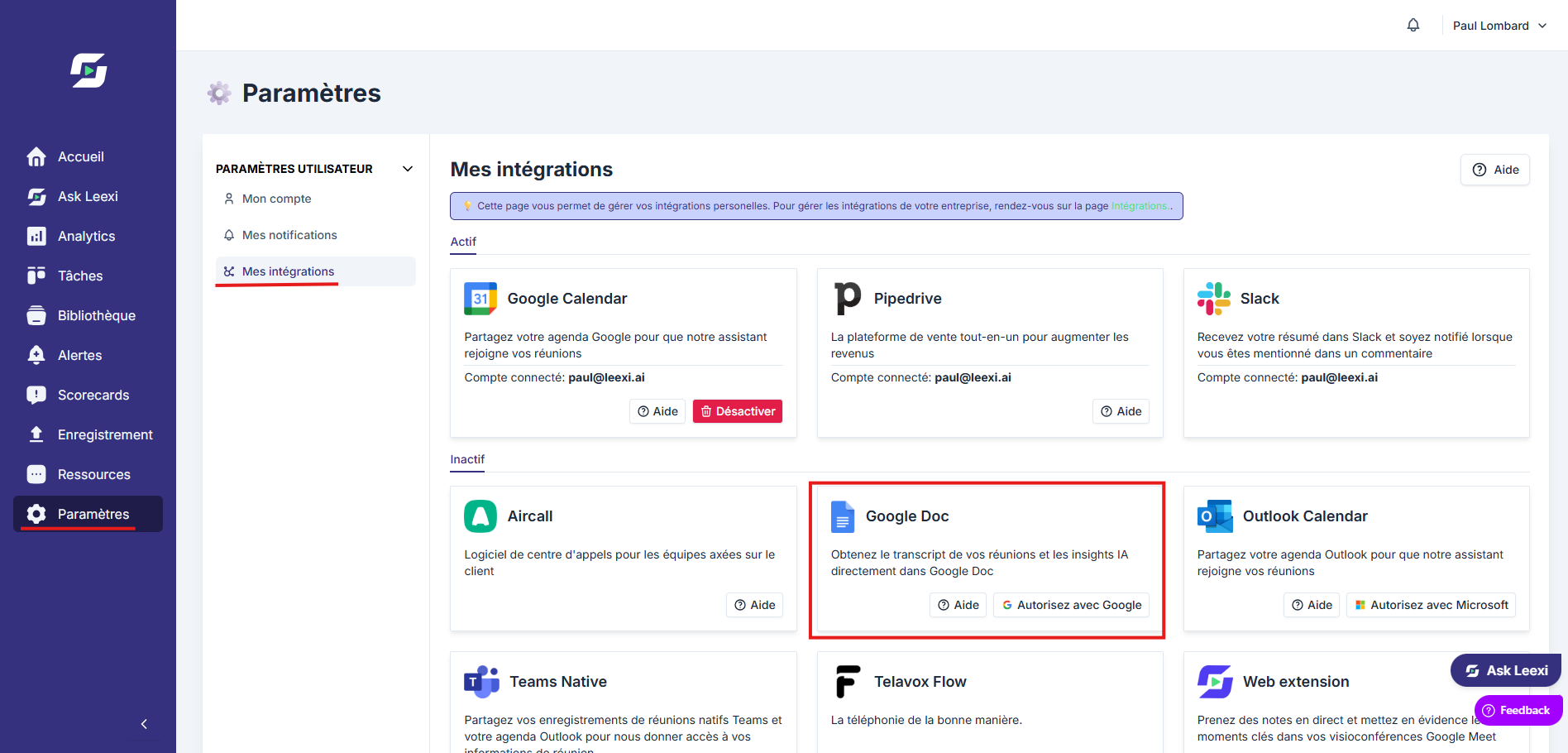
Then finalize the configuration on the Autofill CRM, Notifications, Webhooks or document-sharing side.
Going further
Full list of integrations, their scope, the required plan and each one's guide: see References › Integrations catalogue.
- Webhooks also let you emit technical events to your own systems.
Frequently asked questions
Things to watch out for
- An active integration should be tested on a real case before rolling out its use.
- The rights granted to the external connector should stay limited to what is needed.
- Forbidding personal integrations also prevents members from connecting their calendar: the assistant will then have no meetings to join.
- Remember to check the customization or reporting pages that depend on certain CRM integrations.