

Creating an Account and Inviting Users
Feature video
Who is this for?
- Teams rolling out Leexi across a company.
- People managing headcount, licenses, and access rights.
Permissions and licenses
- All licenses can be assigned from this page.
- Creating and editing users is restricted to administrators authorized to manage users, such as the User Administrator and Super Administrator.
- Managing teams is restricted to administrators authorized to manage teams.
How to use it
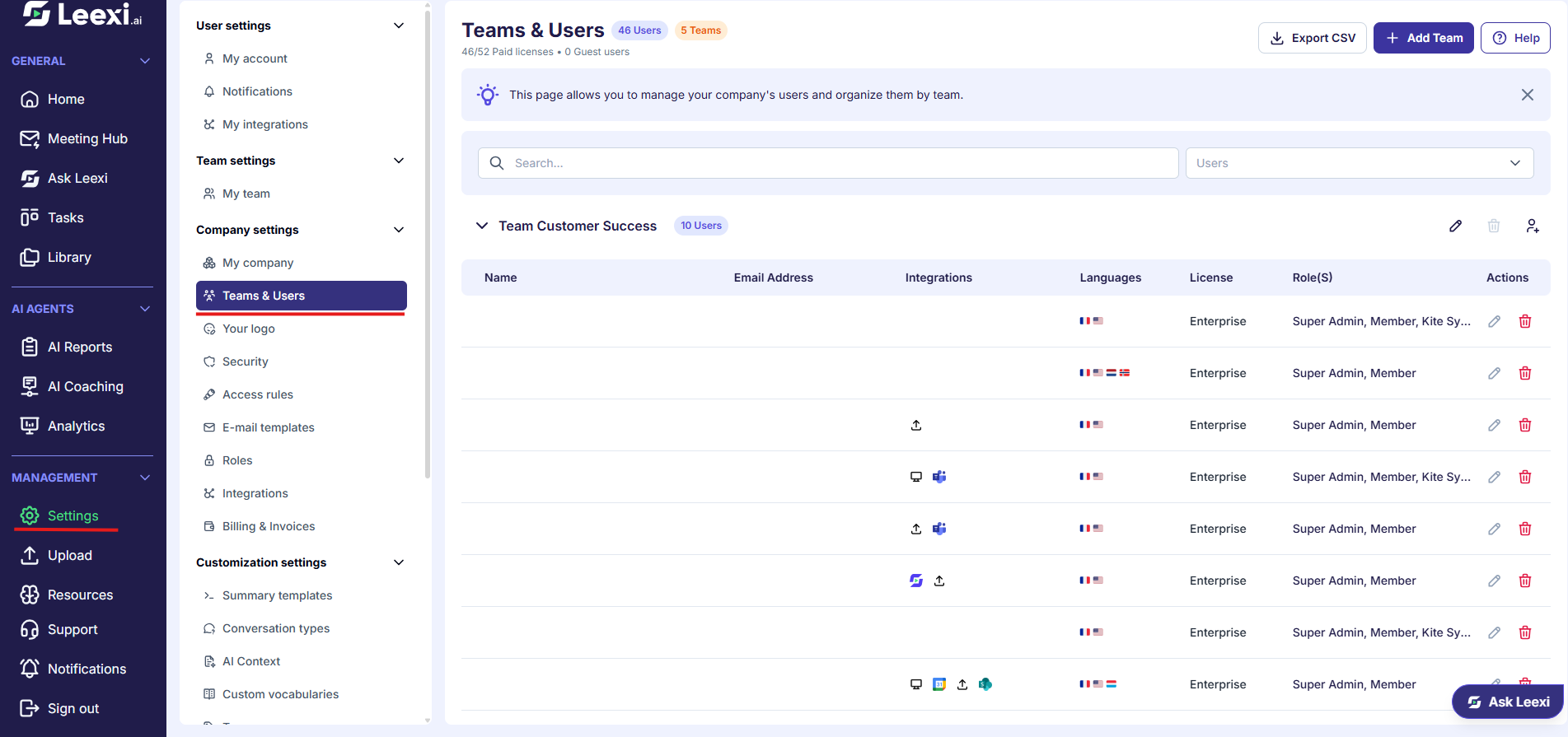
Create a team
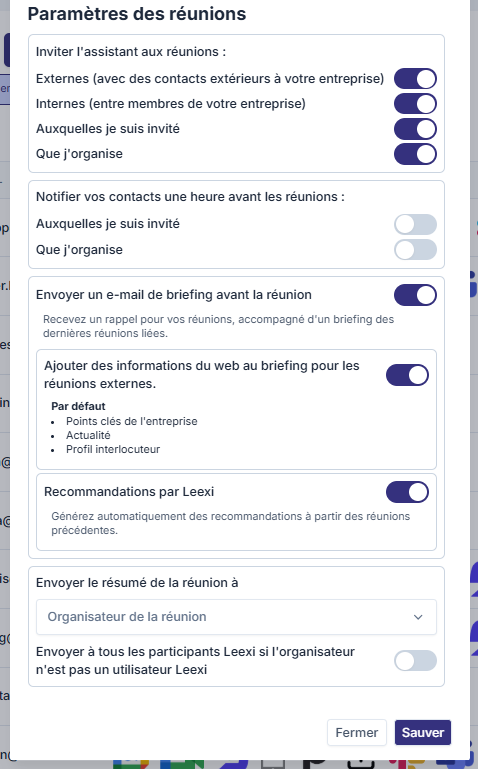
From Settings > Company > Teams & Users, click Add Team. Fill in its name, language, call languages and time zone, unfold Settings if you want to adjust its meeting rules, then confirm.
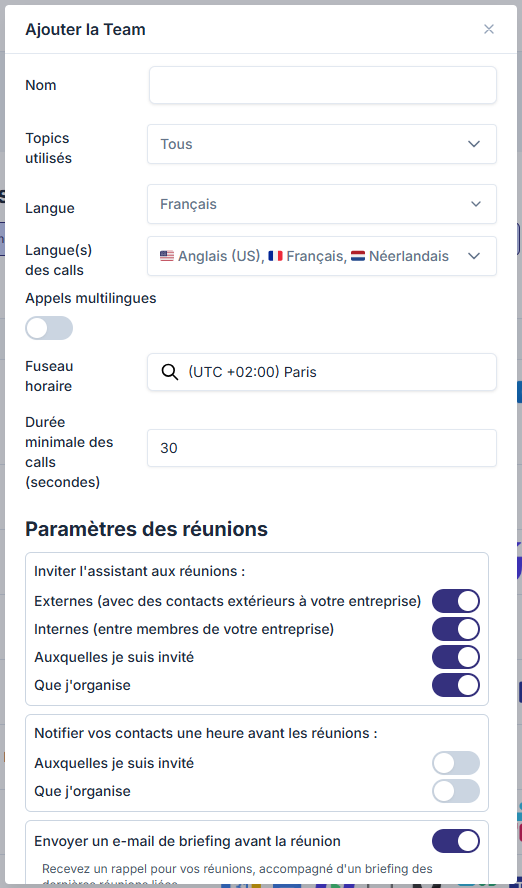
Invite an user
Click Add User from Settings > Team > My team, or the add-user icon of the relevant team on Teams & Users. Fill in the name, email address, team, role(s) and license. The More options fold contains the language, call languages, multilingual switch and time zone, prefilled with the team's values.
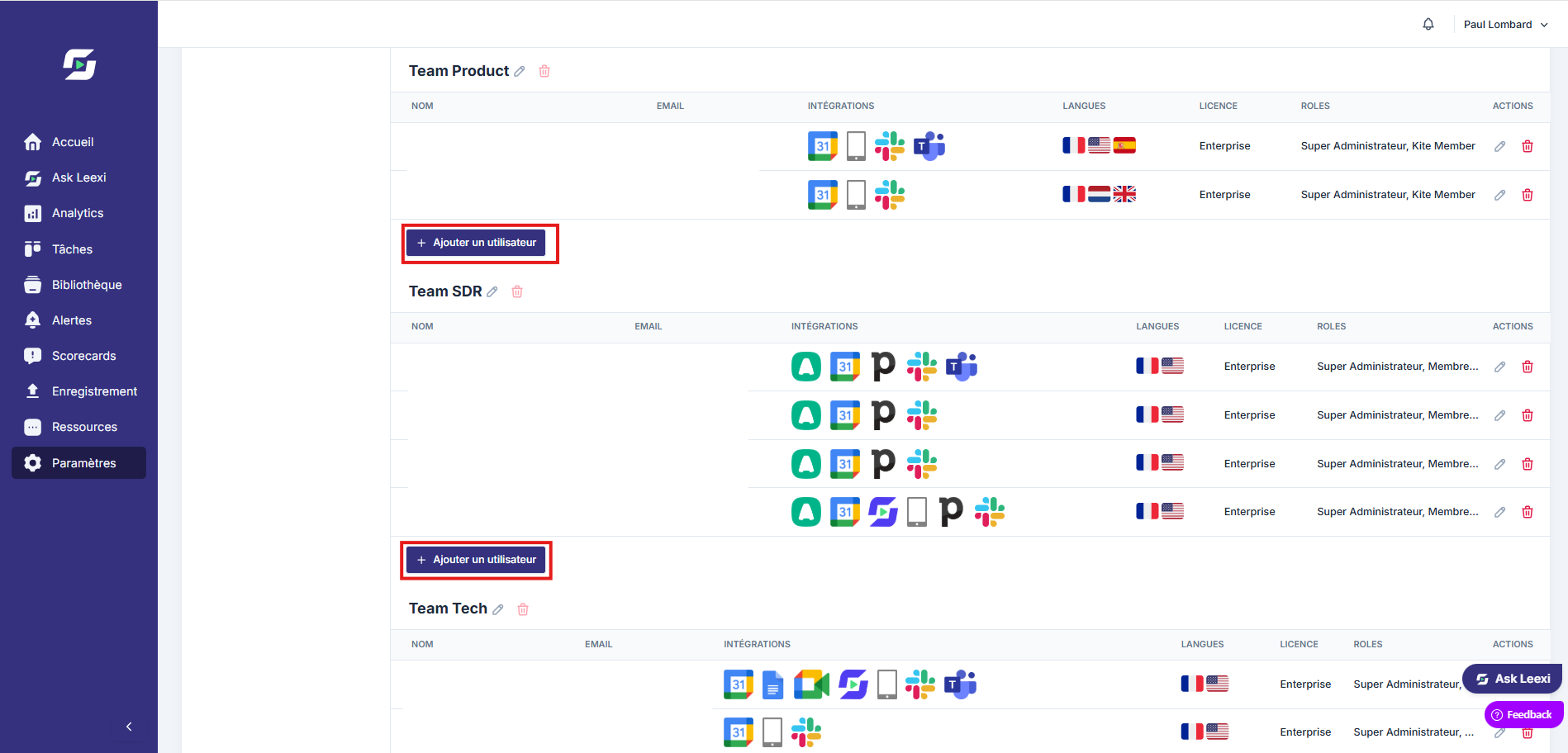
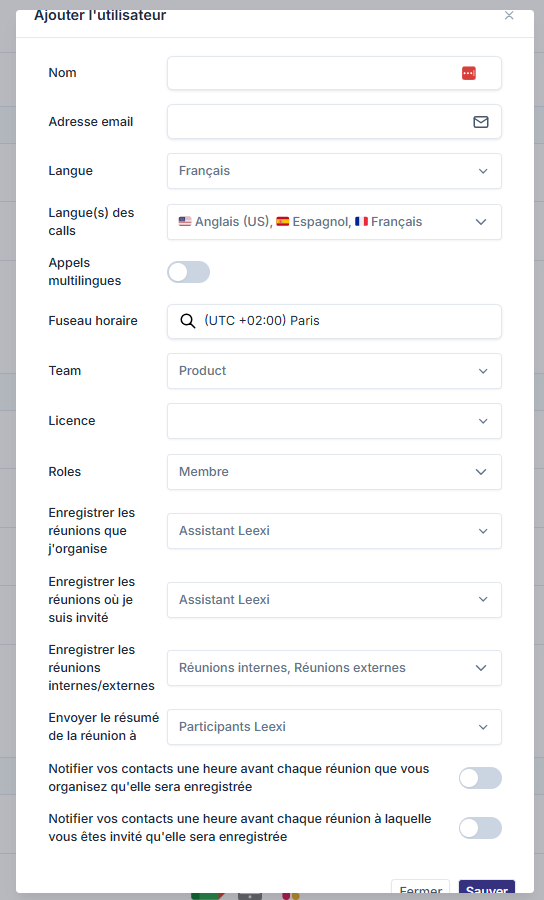
Options and impact of each setting: see References › Settings › Teams & Users.
Check granted rights
Review the combination of assigned roles to make sure each user has the right level of read, admin, and configuration access.
Adjust recording settings
The user form contains no recording settings. What the assistant records, who is notified and who receives the summary is set on Meeting rules, for the company, a team or a person.
Reactivate if needed
Deleted users can be reactivated from the Deleted operators section without recreating an account from scratch.


Going further
- A user can hold multiple roles when this fits your internal organization.
- The chosen license directly drives the features available in the app.
- Team managers can then fine-tune certain settings without going through a super admin.
Frequently asked questions
Things to watch out for
- The role does not replace the license: it determines permissions, not the product plan.
- Incorrect rights assignment can open access to sensitive company settings.
- Check team settings before inviting in bulk to avoid inconsistent settings.
- The email address used for the Leexi account must be the same one used in the calendar and for VoIP calls, otherwise the bot won't correctly detect meetings.