

Notifications
Feature video
Who is this for?
- All users who want to adjust their alert level.
- Administrators who want to harmonize usage across the company.
Permissions and licenses
- Personal preferences are available to every user.
- Applying to the whole company requires the permission to change company settings.
- The Slack and Teams columns only appear if the matching integration is connected and active; some notifications then remain unavailable on these channels.
- Some rows require the Business plan or an add-on: they are then greyed out with the "Requires a Business license" tooltip, or absent.
How to use it
Open the page
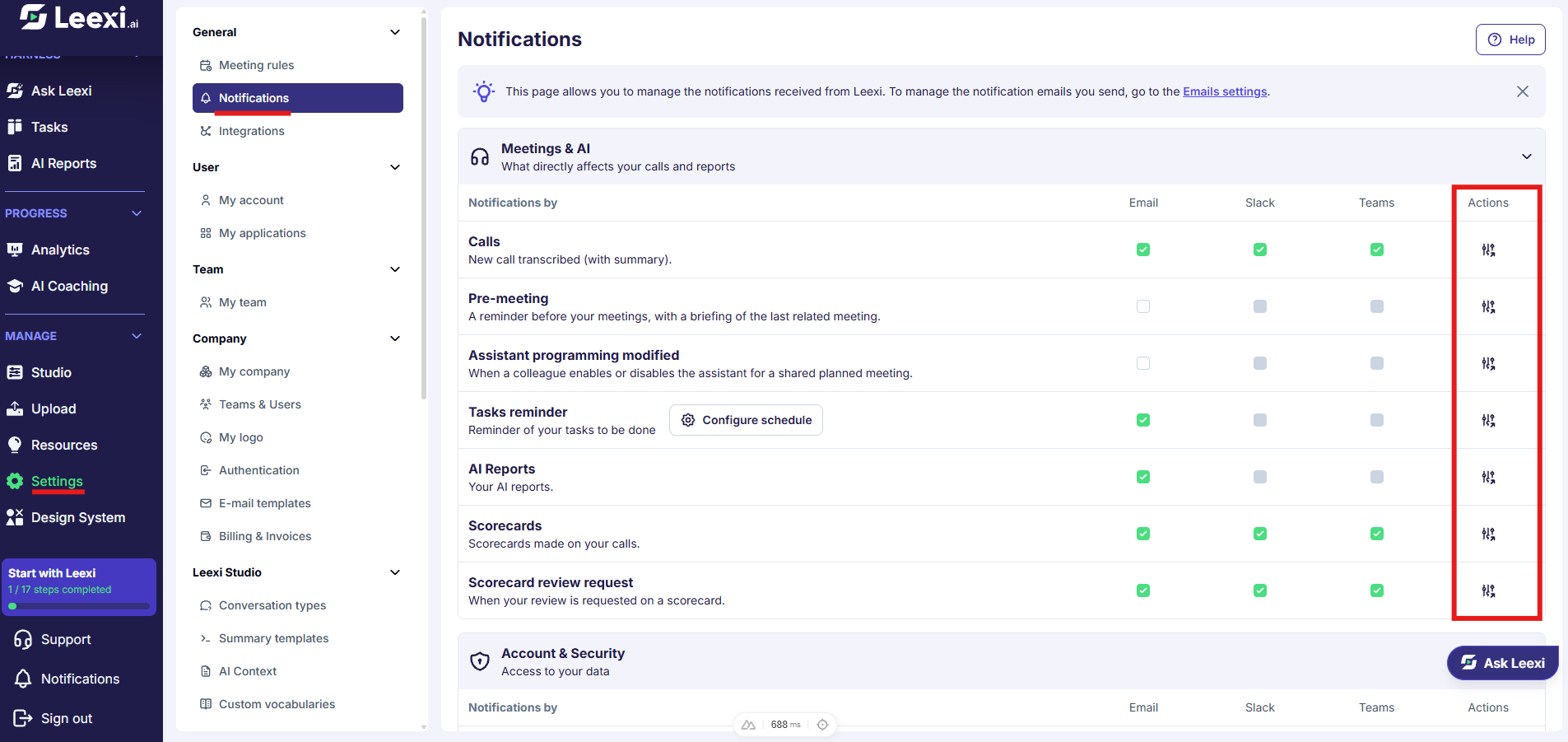
Go to Settings > General > Notifications.
Browse the themes
Notifications are split into four foldable blocks: Meetings & AI, Account & Security, Collaboration and Product & Leexi news. Unfold a block to see its rows.
Options and impact of each setting: see References › Settings › Notifications.
Choose the channel for each notification
Each row offers one checkbox per available channel: Email, Slack and Teams. Tick only the channels that are useful for that notification; the change is saved immediately.
A greyed-out checkbox indicates a channel that this notification does not offer, or a notification your license does not include.
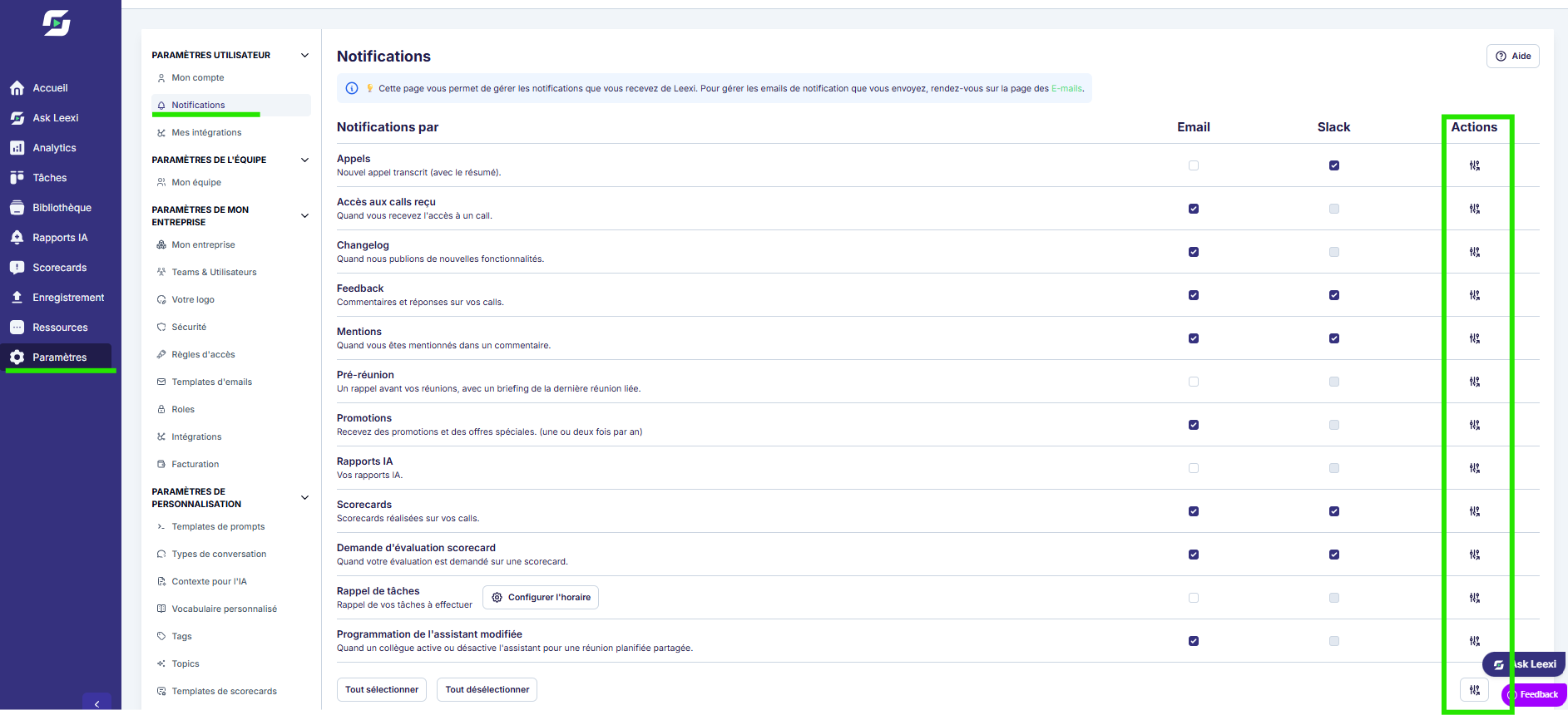
The Select all and Deselect all buttons at the bottom of the page act on every row and every available channel.
Set the task reminder
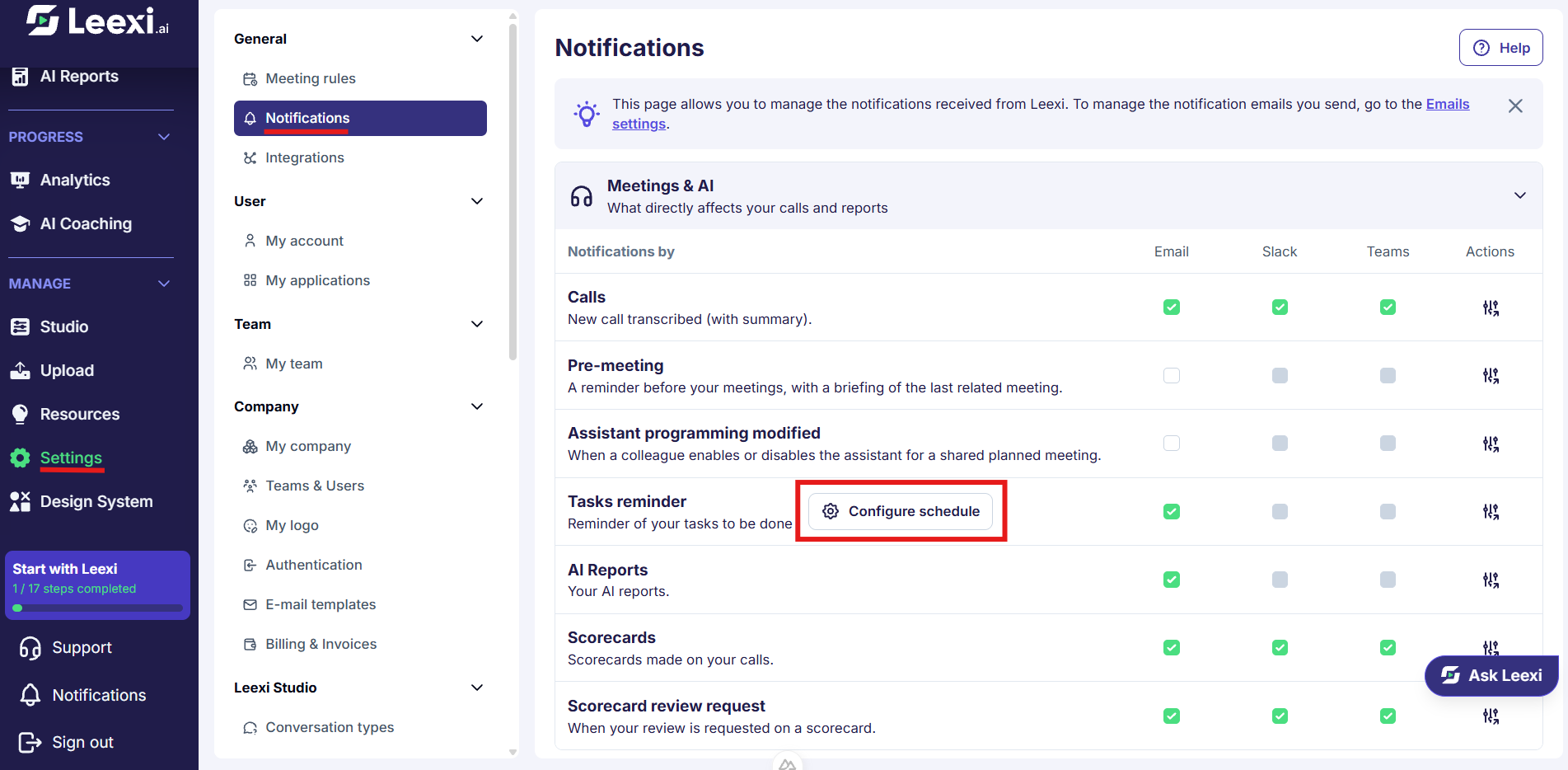
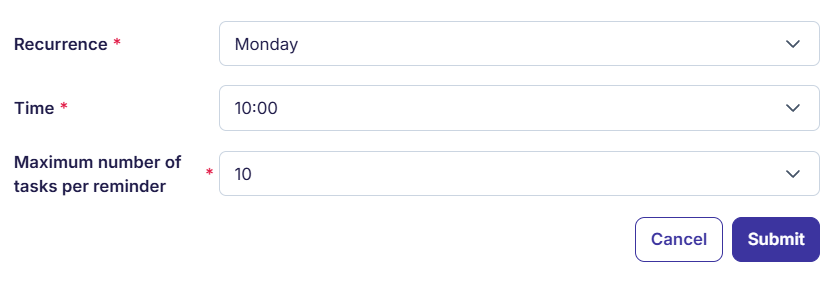
The task reminder row carries a Configure schedule button: it opens the choice of days, time and maximum number of tasks per reminder.
Apply a setting to the whole company
If you are allowed to change company settings, an Actions column appears to the right of each row, with the Apply on every user button.
This button pushes your setting for that row — channels included — to every user in the company and replaces their individual preferences. A confirmation reminds you of this before it is sent. The same button, at the bottom of the page, applies all your notification settings at once.
Going further
- Too many notifications reduce the value of the important alerts: start with Meetings & AI, then add as needed.
- Preferences are personal: applying a setting to the whole company is the only way to realign what already exists.
- This page does not configure the emails sent to your contacts, such as the GDPR email sent before a meeting: those are the Meeting rules and the E-mail templates.
Frequently asked questions
Things to watch out for
- A channel that is not connected makes the matching notifications ineffective, even when ticked.
- "Deselect all" also switches off security notifications, such as an access change on one of your calls.
- Check your settings after a change of role, license or integration.