

My logo
Feature video
Who is this for?
- Companies that want an assistant more consistent with their brand, especially agencies or teams that work directly with external clients.
- Administrators who want to reduce the perception of an unknown third party in meetings while staying transparent (the "powered by Leexi" mention is kept).
- Companies that must comply with a specific visual identity in their communications and client interactions.
Permissions and licenses
- Requires: AI Meeting
- Editing the branding is reserved for administrators authorized to manage the assistant's profile.
- This access is notably present for the Company manager, the System admin and the Super admin.
- The required license is AI Meeting or Business. This feature is not available on the Starter plan.
How to use it
Open the page
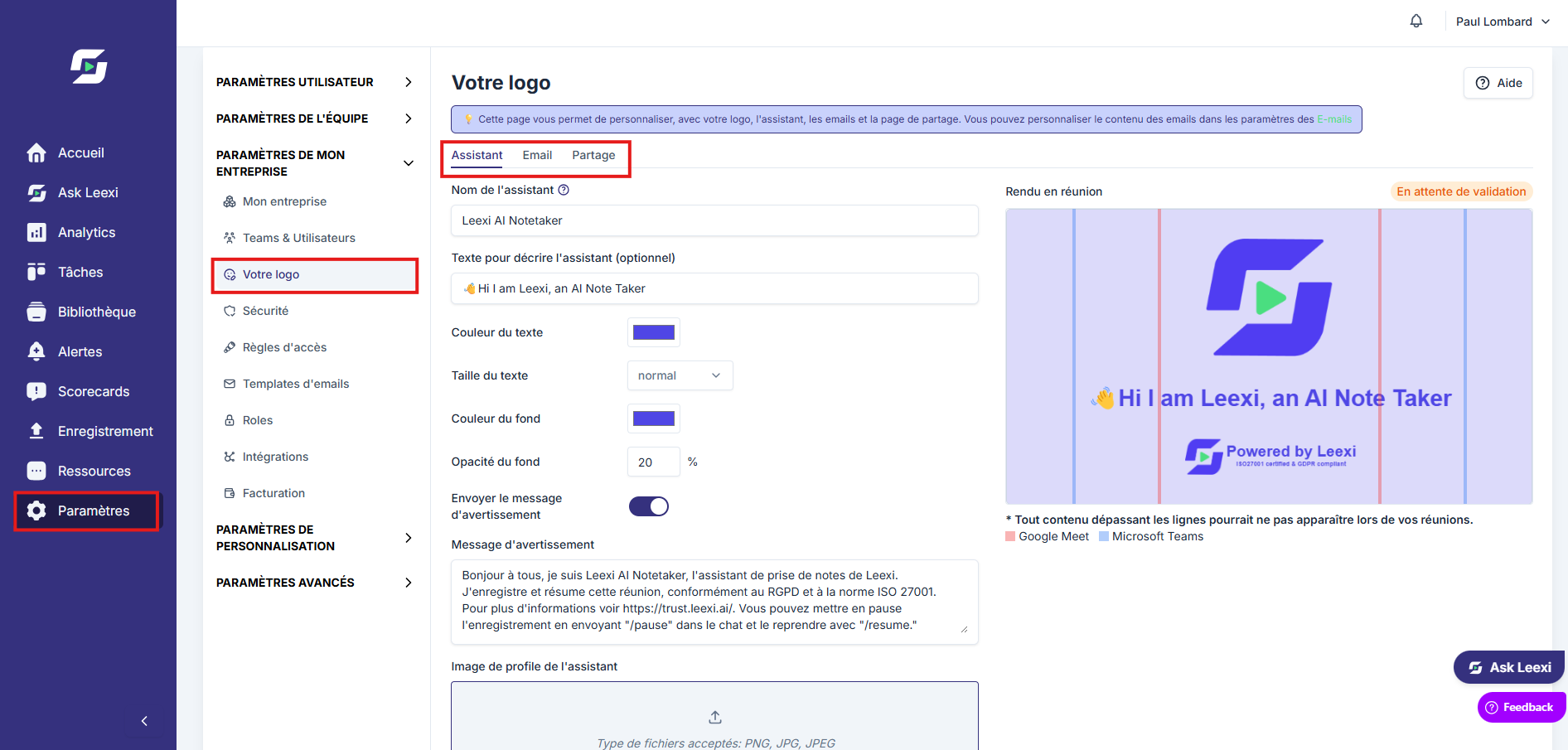
Go to Settings > Company > My logo. The page has three tabs: assistant, email and sharing.
Edit the visual elements
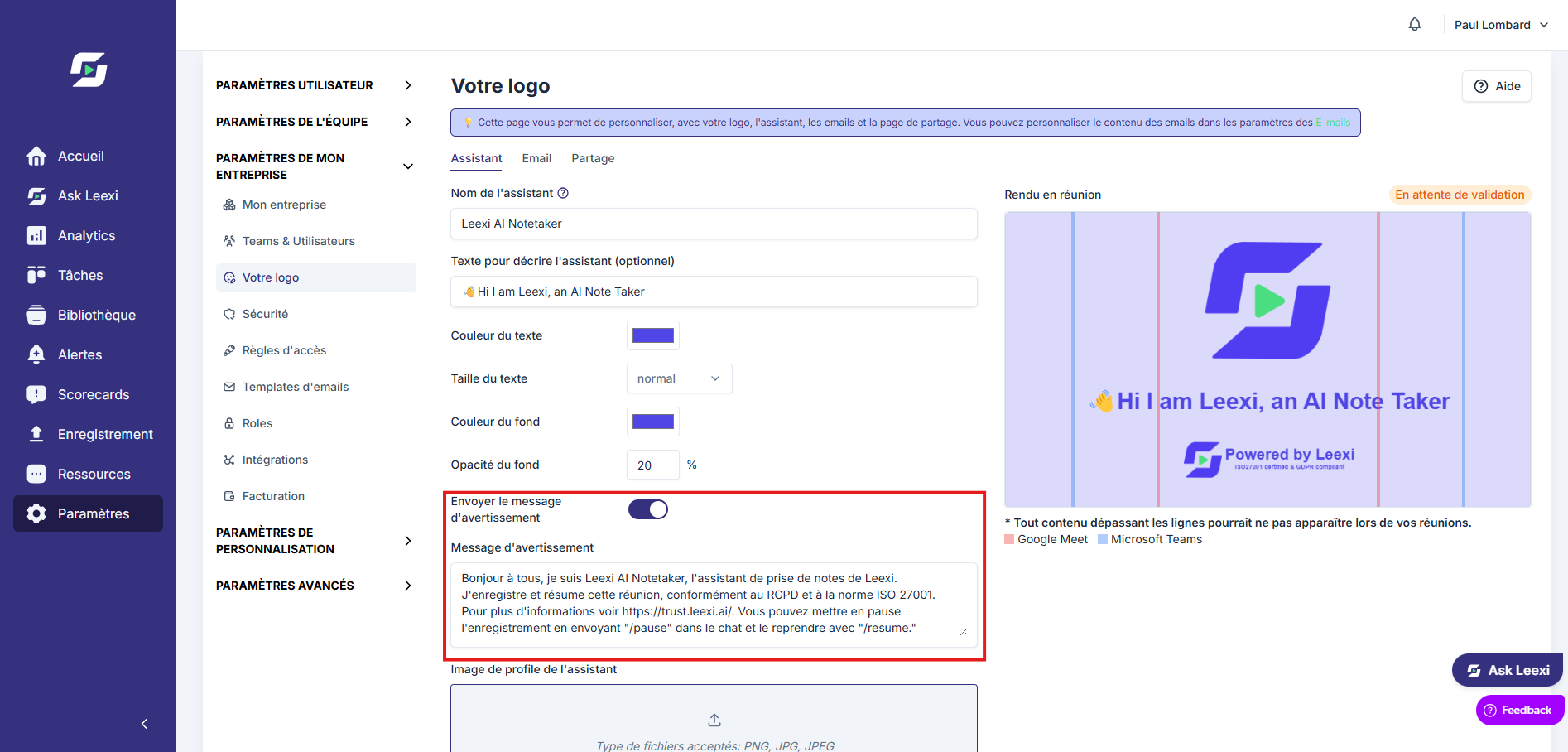
On the assistant tab, fill in the assistant's name, description, colours, disclaimer message and logo, then save. The Preview in meeting shows what attendees will see.
Options and impact of each setting, including the length and character rules for the name and the message: see References › Settings › My logo.
Review the exposed messages
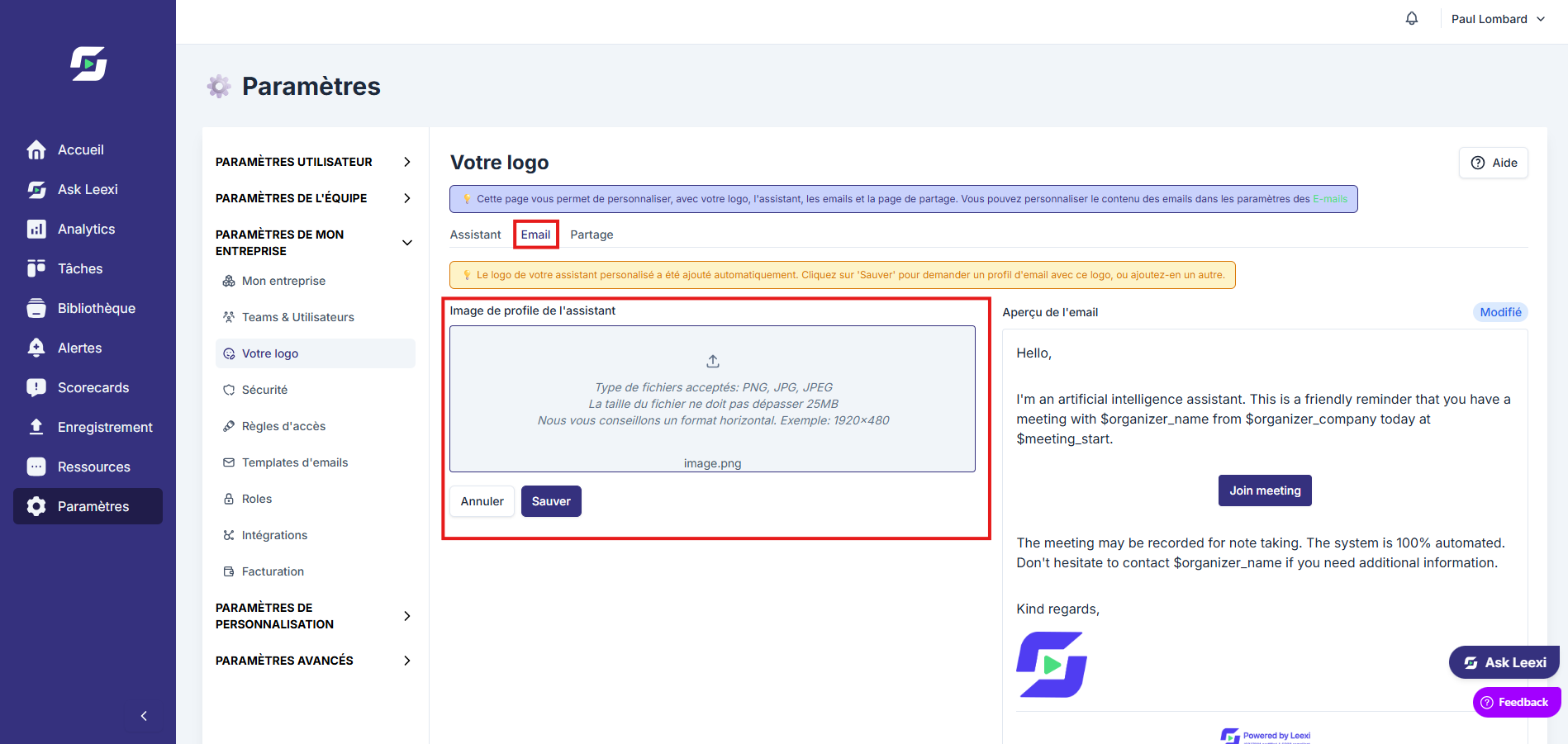
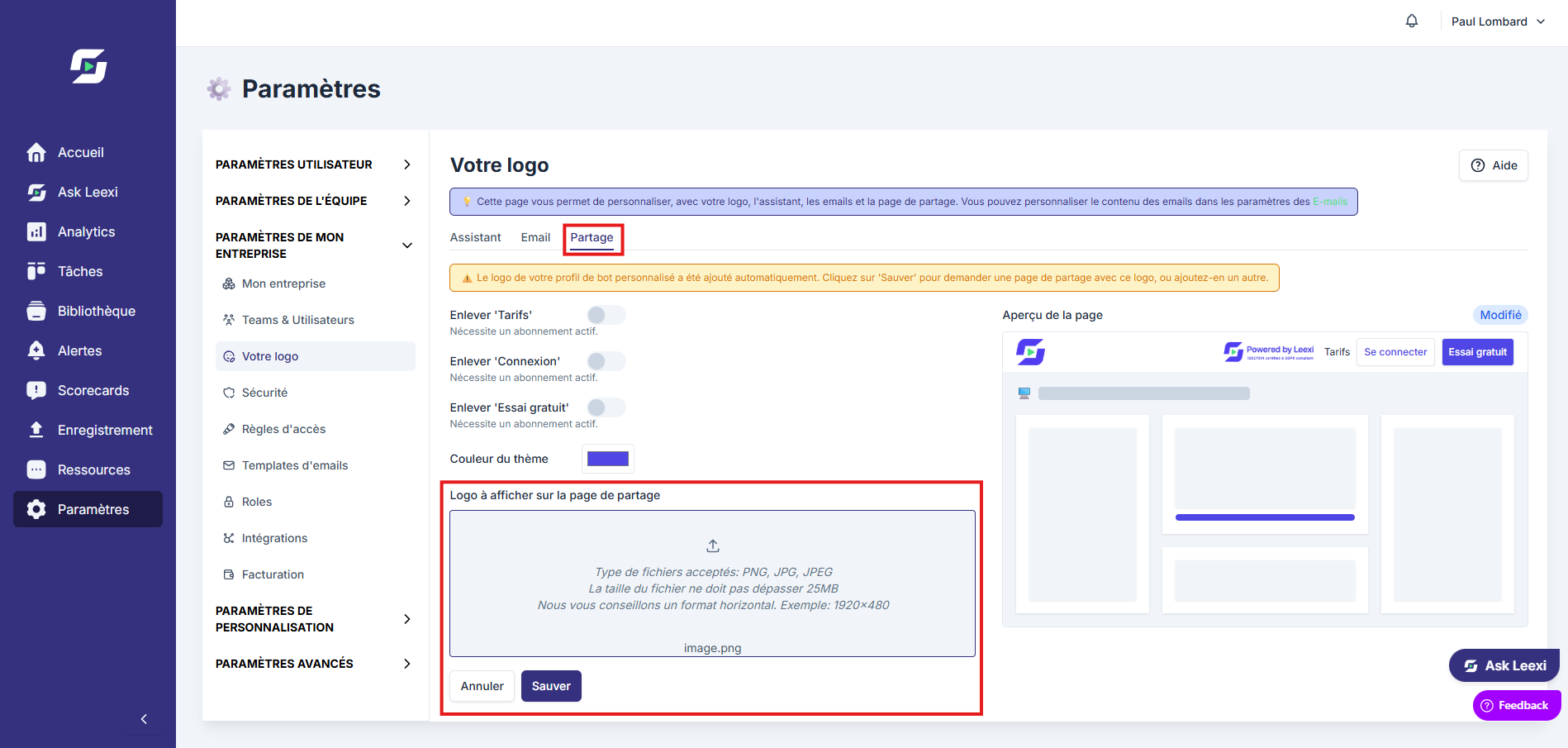
On the email and sharing tabs, add your logo and, for the sharing page, choose the theme colour and the buttons to remove.
Test the display
Follow the status badge of each tab: Pending validation until Leexi has validated the version, then Active. Then check the rendering in a meeting, a reminder email and a shared page.
Going further
- Branding mainly affects user perception, not the bot's technical behavior.
- Clear customization makes adoption easier in large organizations.
- Some Leexi spaces may keep certain product branding elements to ensure clarity of service.
Frequently asked questions
Things to watch out for
- Don't confuse visual customization with functional permissions.
- Test changes before rolling them out globally.
- Keep a readable presentation in external sharing spaces.
- There is only one bot profile for the whole company: any change applies to all members.
- The name must clearly indicate it is an assistant and not a person. The length and character rules are detailed in the reference.
- The Leexi logo and the "powered by Leexi" mention cannot be removed, but their color automatically adapts to the background to stay readable.
- Changes to the bot profile are validated by Leexi before becoming active: allow a few hours.