

Meeting rules
Feature video
Who is this for?
- All users, for the Personal tab.
- Team managers who set their members' defaults, for the Team tab.
- Administrators who frame the assistant's behaviour for the whole company, for the Company tab.
Permissions and licenses
- The Personal tab is visible to everyone.
- The Team tab only appears if you are allowed to manage your team.
- The Company tab only appears if you are allowed to change company settings.
- AI preparation insights, validation by reviewers and automatic pseudonymization require the Business plan: without it, the switch is greyed out with the "Requires a Business license" tooltip.
How to use it
Open the page
Go to Settings > General > Meeting rules.
Each tab has its own address, so you can bookmark or share the Company tab directly. If you open the page without specifying a tab, Leexi takes you back to the last tab you visited, or to Personal if it is no longer available.
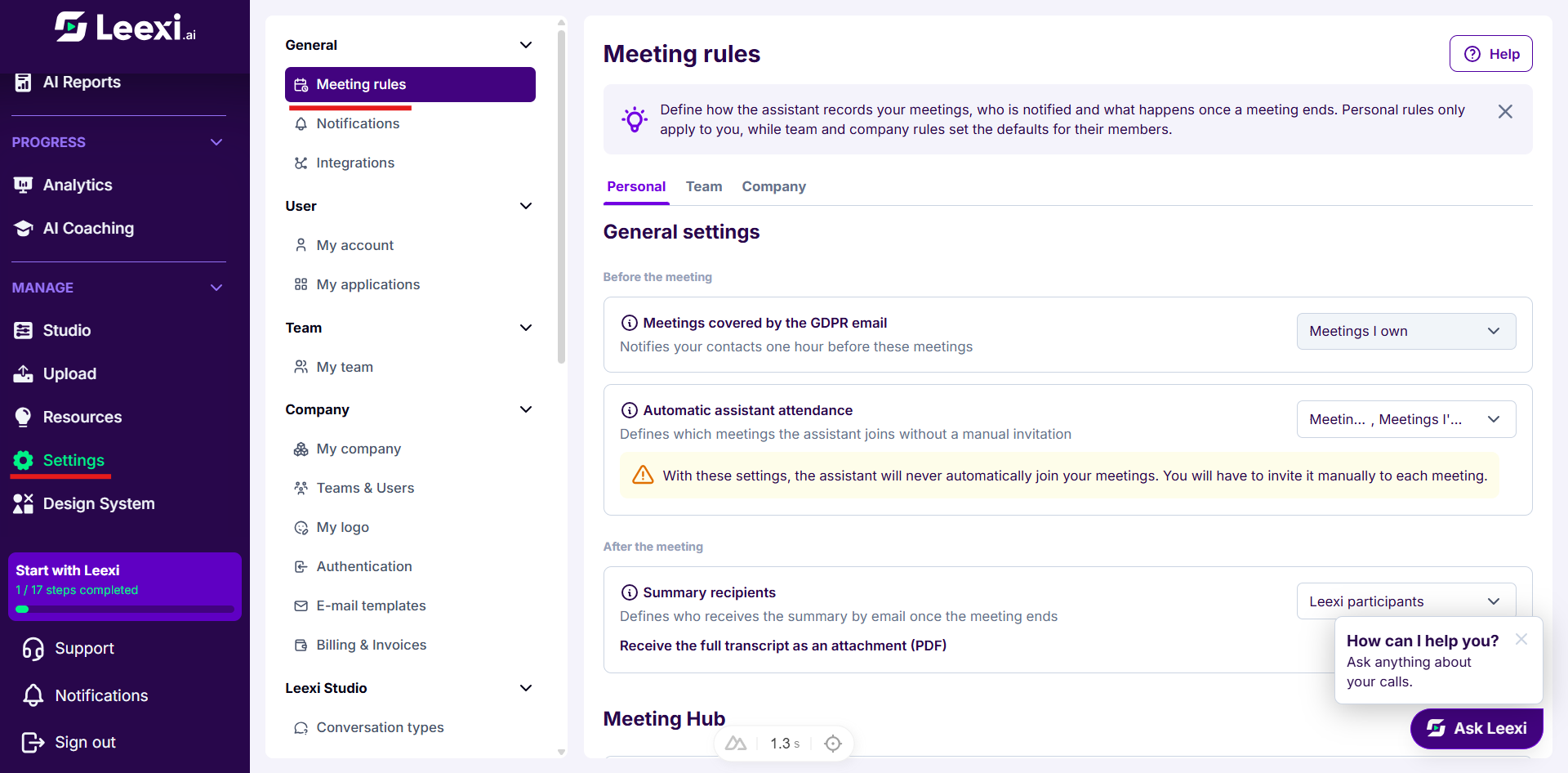
Pick the right tab
- Personal: your own rules. They only apply to your meetings.
- Team: the defaults for the members of your team.
- Company: the defaults for the whole company, plus the settings that only exist at this level.
Changing a default does not overwrite the choices members have already made: use the apply button described below for that.
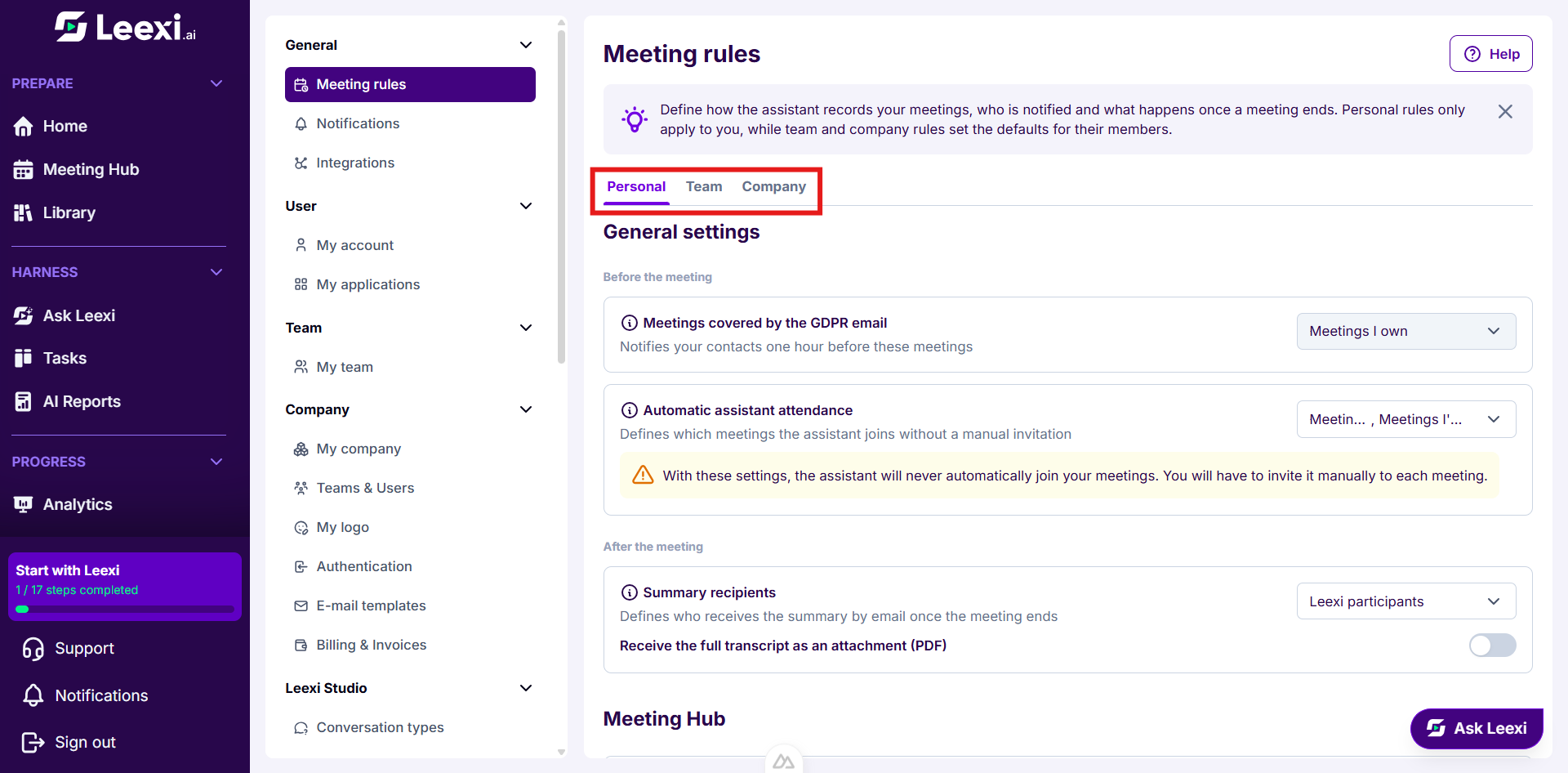
Notify external contacts
Under Before the meeting, the first block, Meetings covered by the GDPR email, defines which meetings trigger an email to your contacts, one hour before the start, telling them the meeting will be recorded. Select the meetings you own, those you are invited to, or both.
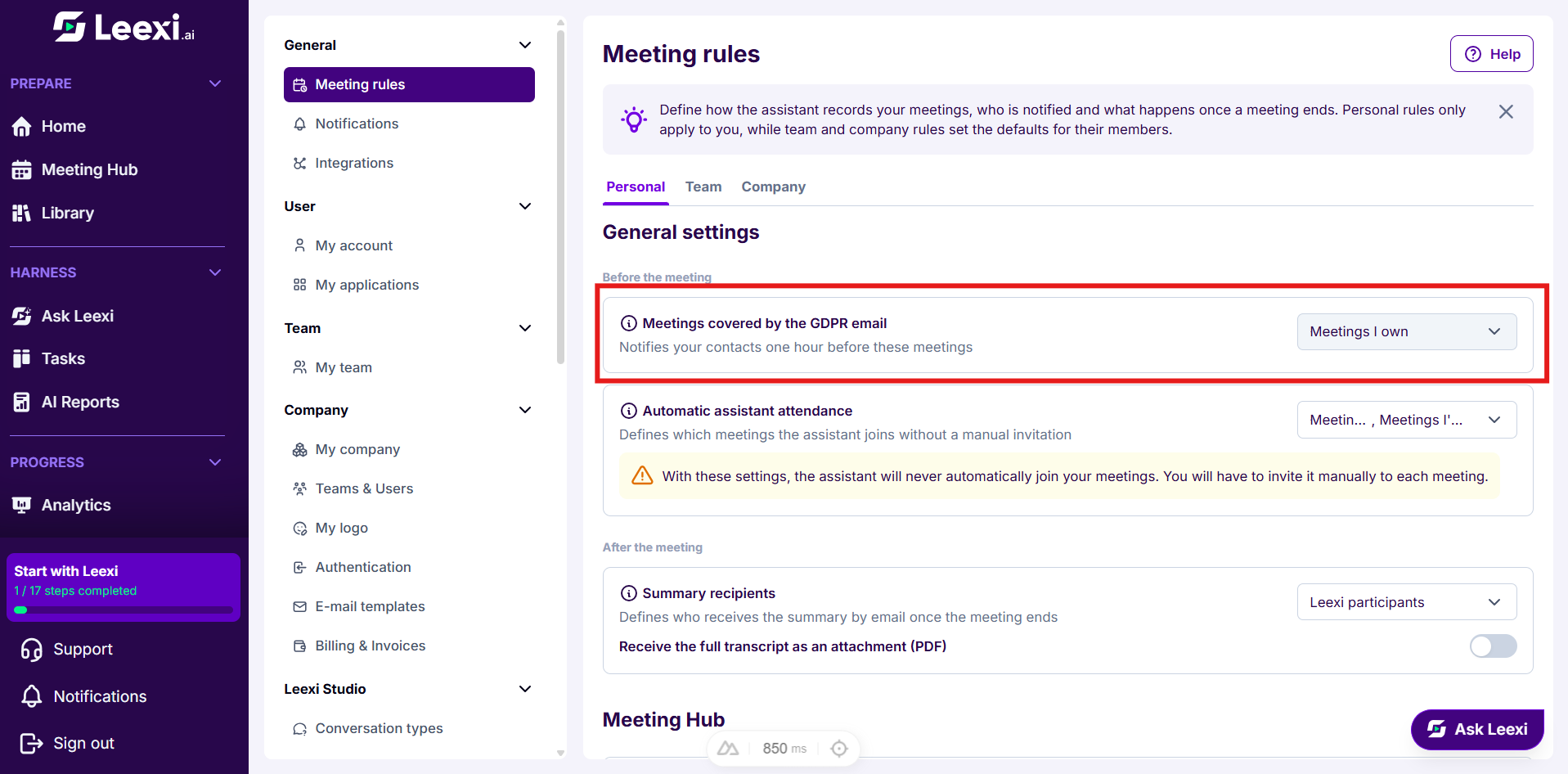
Set the assistant's automatic attendance
The Automatic assistant attendance block determines which meetings the assistant joins without a manual invitation. Combine an attendee criterion (internal or external) with a role criterion (meetings you own or are invited to).
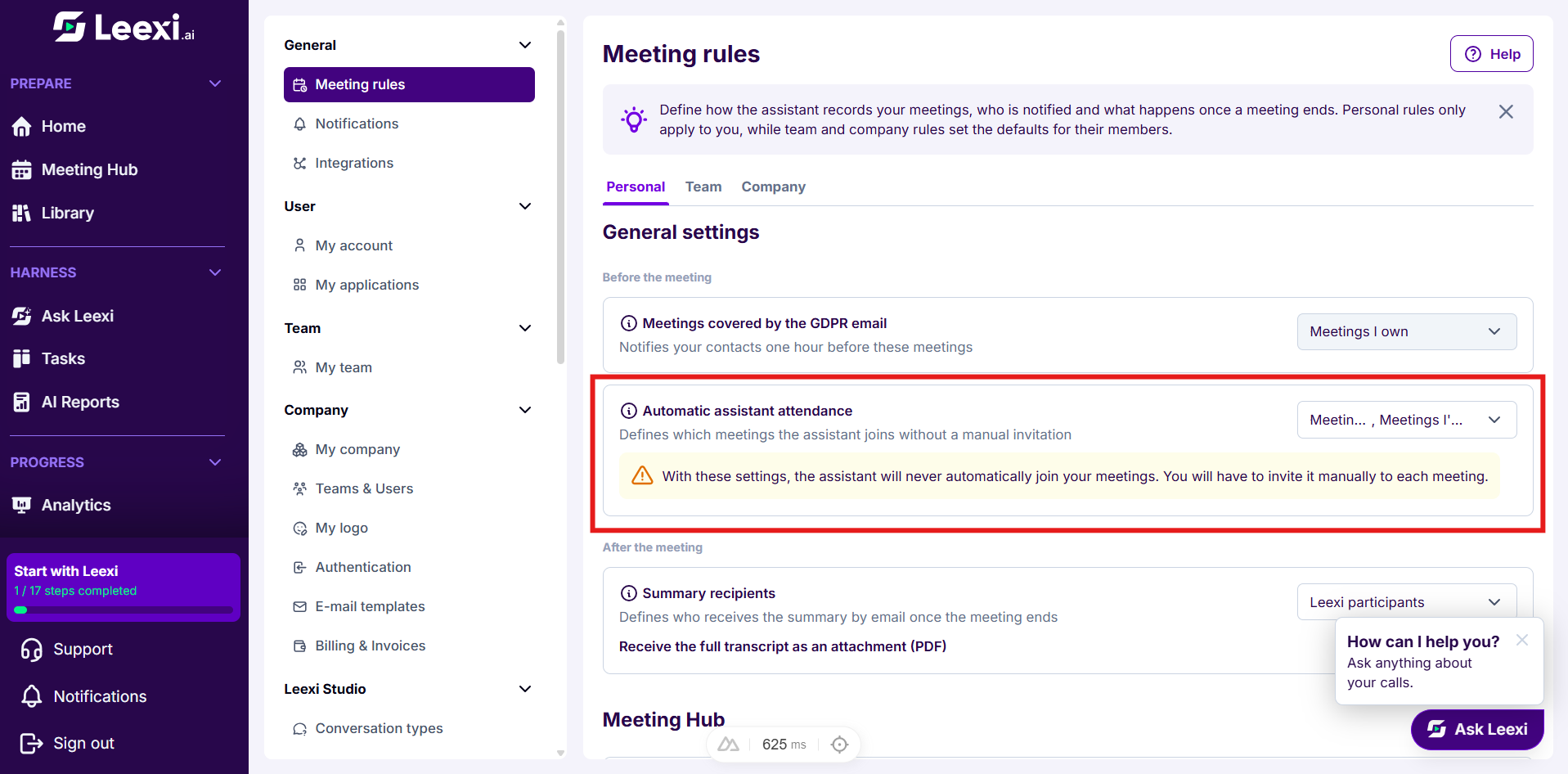
As long as no combination is complete, a warning appears: the assistant will never come on its own and you will have to invite it manually to every meeting.
With a Teams or Zoom integration on your account, this block shows three fields instead: the recording method for the meetings you own (Leexi assistant or native recording), the recording of the meetings you are invited to (Leexi assistant only) and the Record internal/external meetings field.
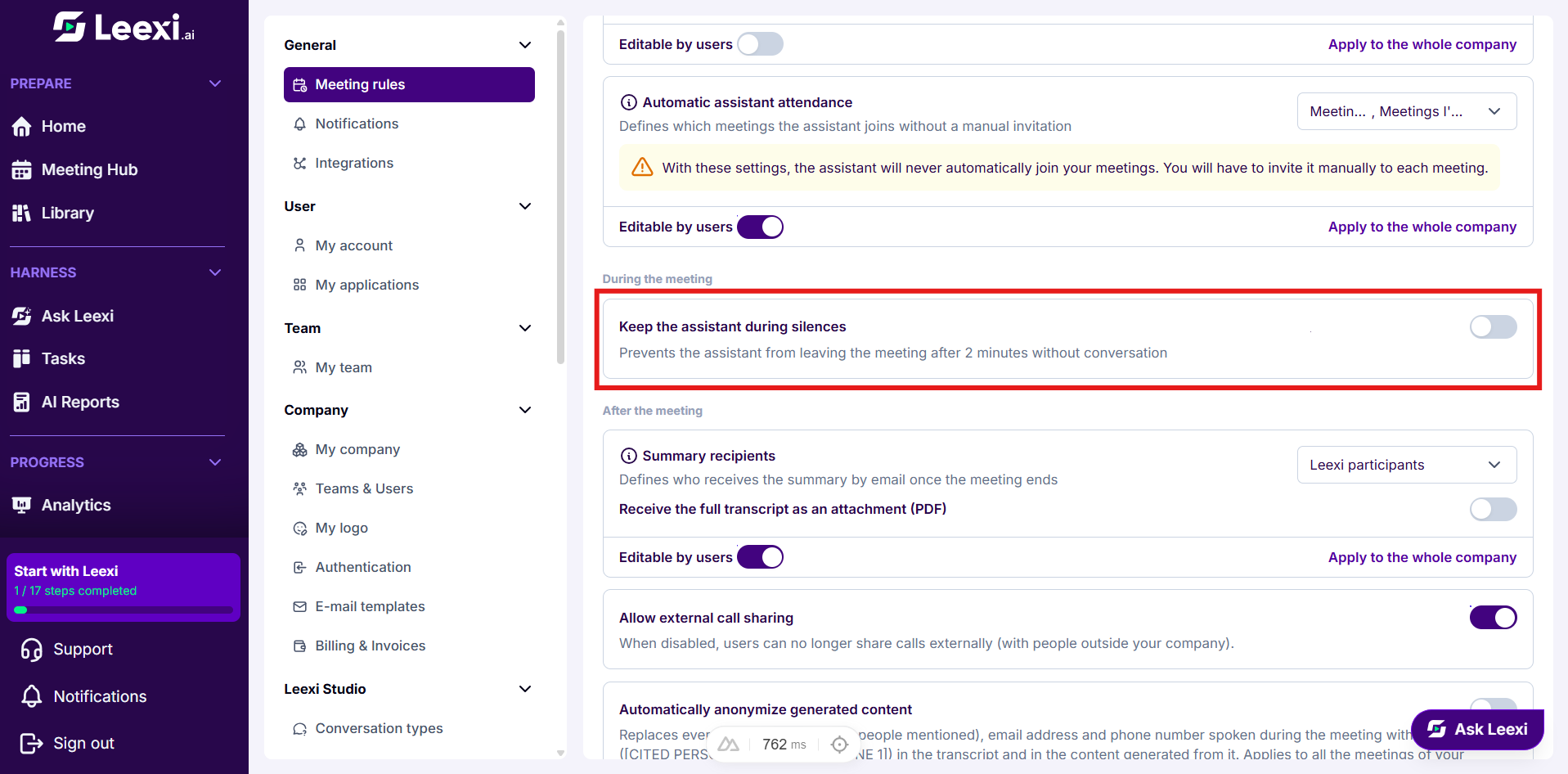
Keep the assistant during silences
The During the meeting block only exists on the Company tab. Enable Keep the assistant during silences so that the assistant stays in meetings that start late or include long pauses.
Frame what goes out after the meeting
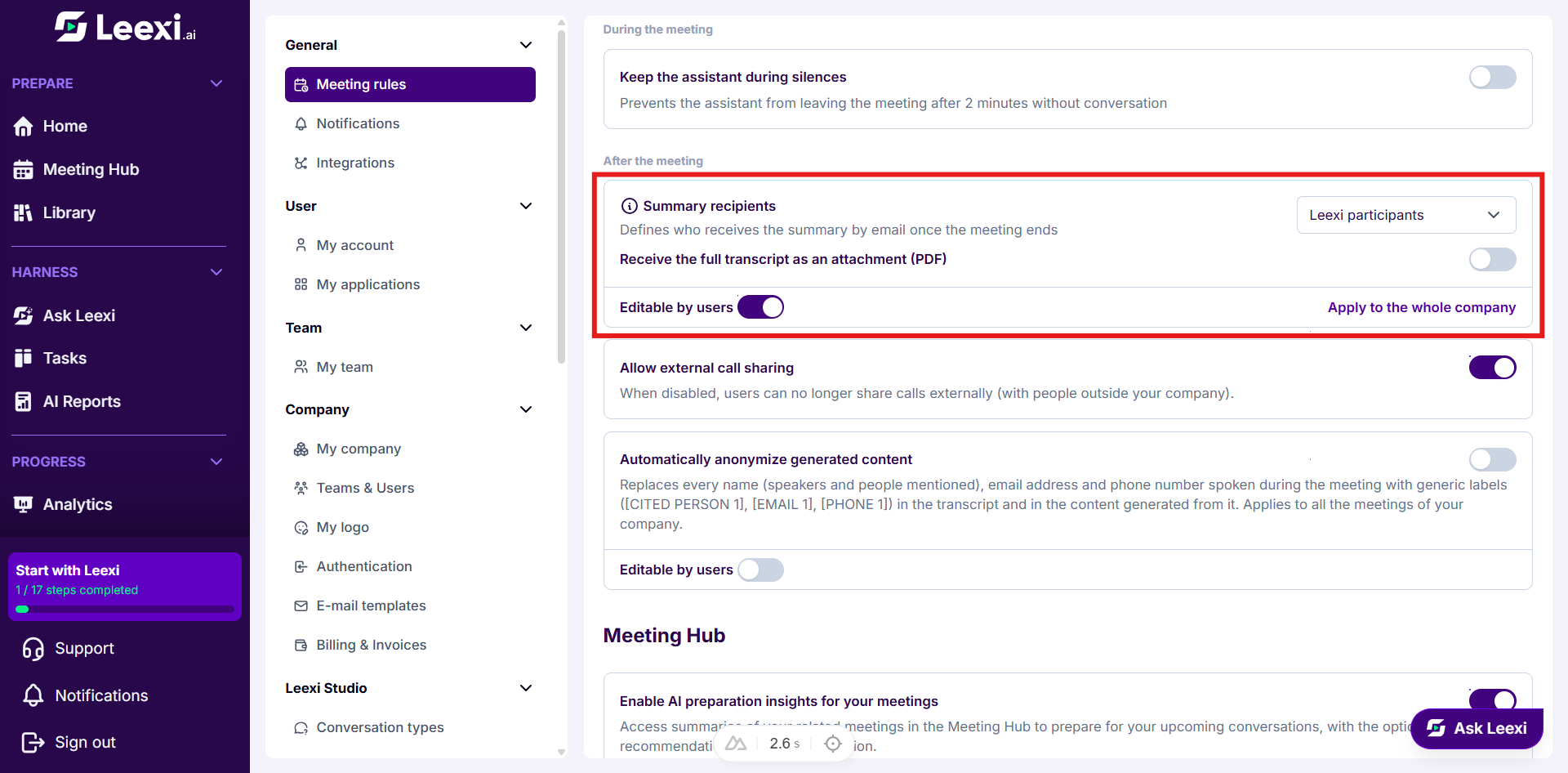
The After the meeting block covers everything sent once the meeting is over. Choose the Summary recipients, then enable Receive the full transcript as an attachment (PDF) if needed.
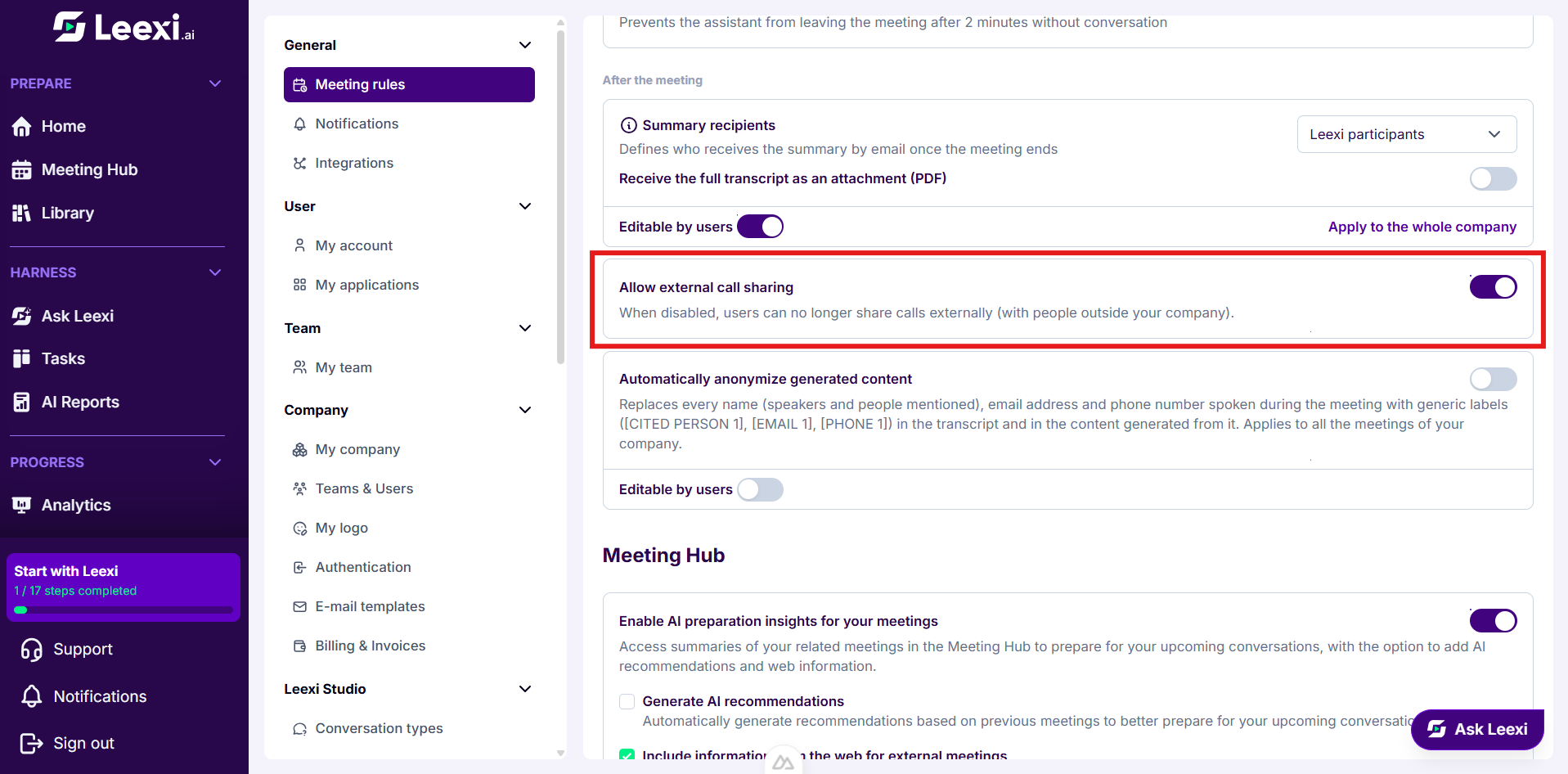
The Company tab adds Allow external call sharing.
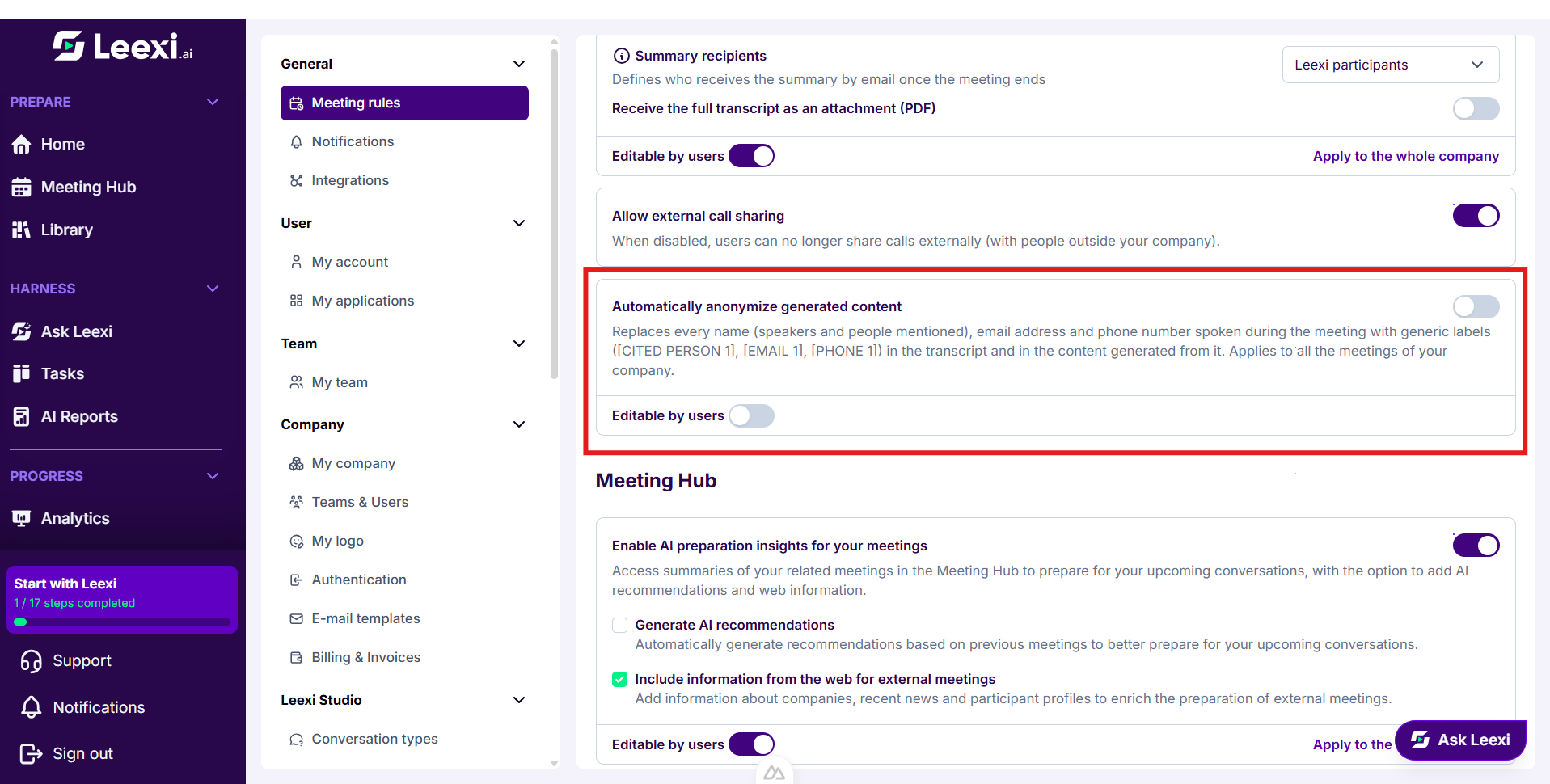
The Team and Company tabs add Automatically pseudonymize generated content.
Configure the Meeting Hub
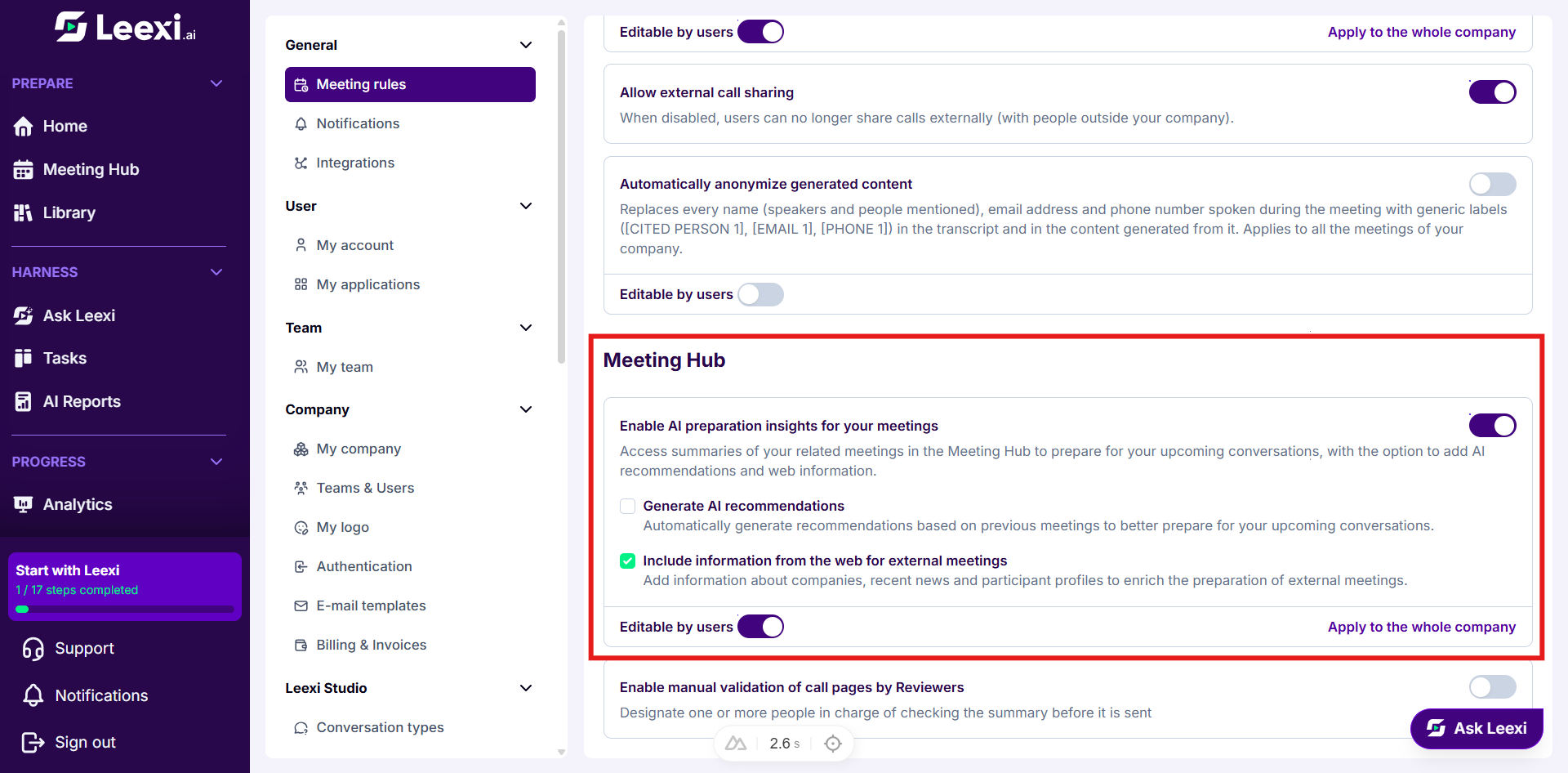
The second block of the page covers the Meeting Hub. Enable Enable AI preparation insights for your meetings, then tick or untick the AI recommendations and the information from the web.
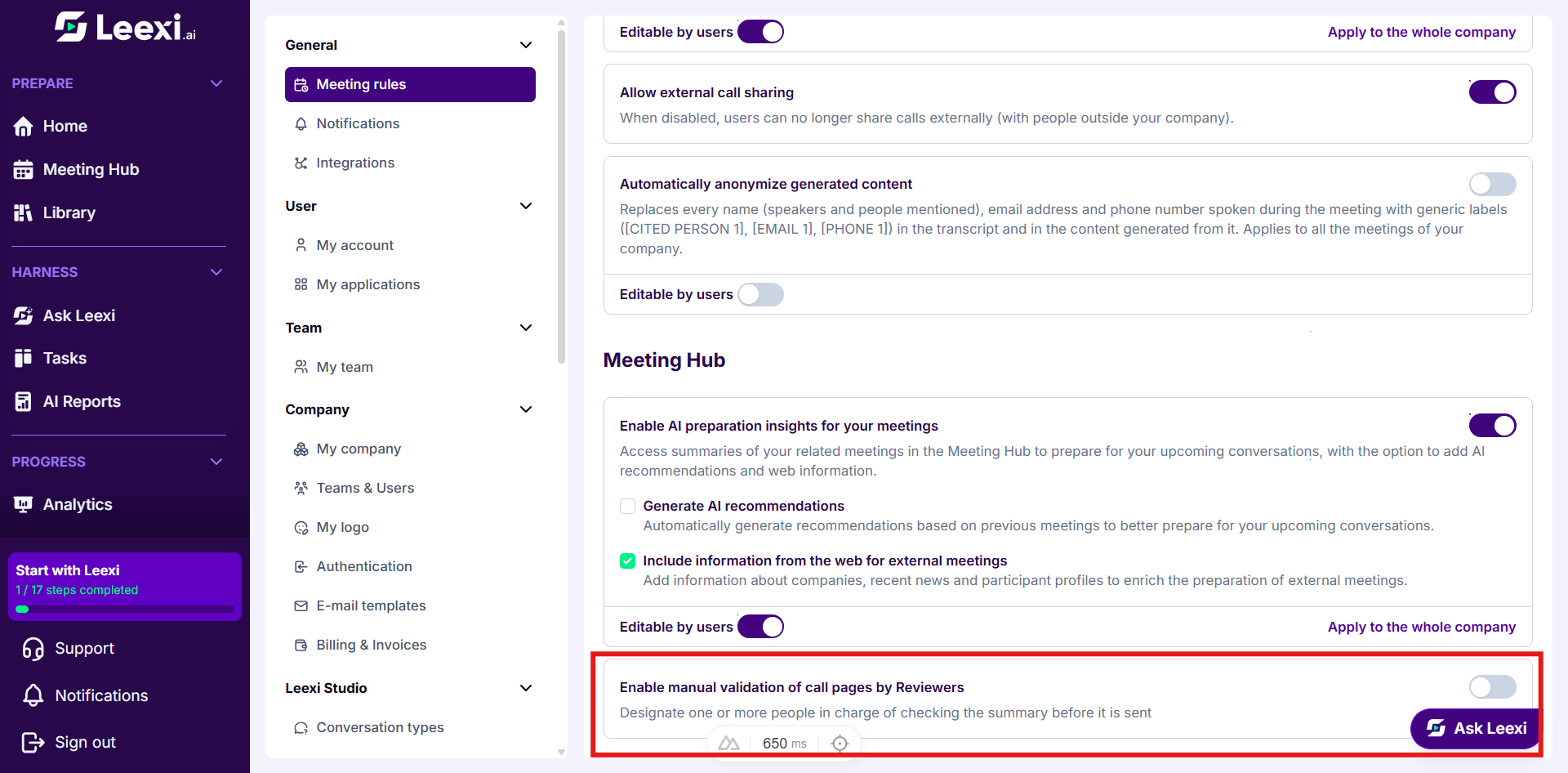
On the Company tab, Enable manual validation of call pages by Reviewers lets you appoint people responsible for checking the meeting notes before they are sent. Disabling this option makes all validated and under-review calls public, and therefore asks for a confirmation.
Options and impact of each setting: see References › Settings › Meeting rules.
Allow or lock a setting
On the Company tab, the GDPR email, automatic assistant attendance, summary recipients, AI preparation insights and pseudonymization blocks carry an Editable by users switch in their footer. When disabled, members still see the setting on their Personal tab but can no longer change it.
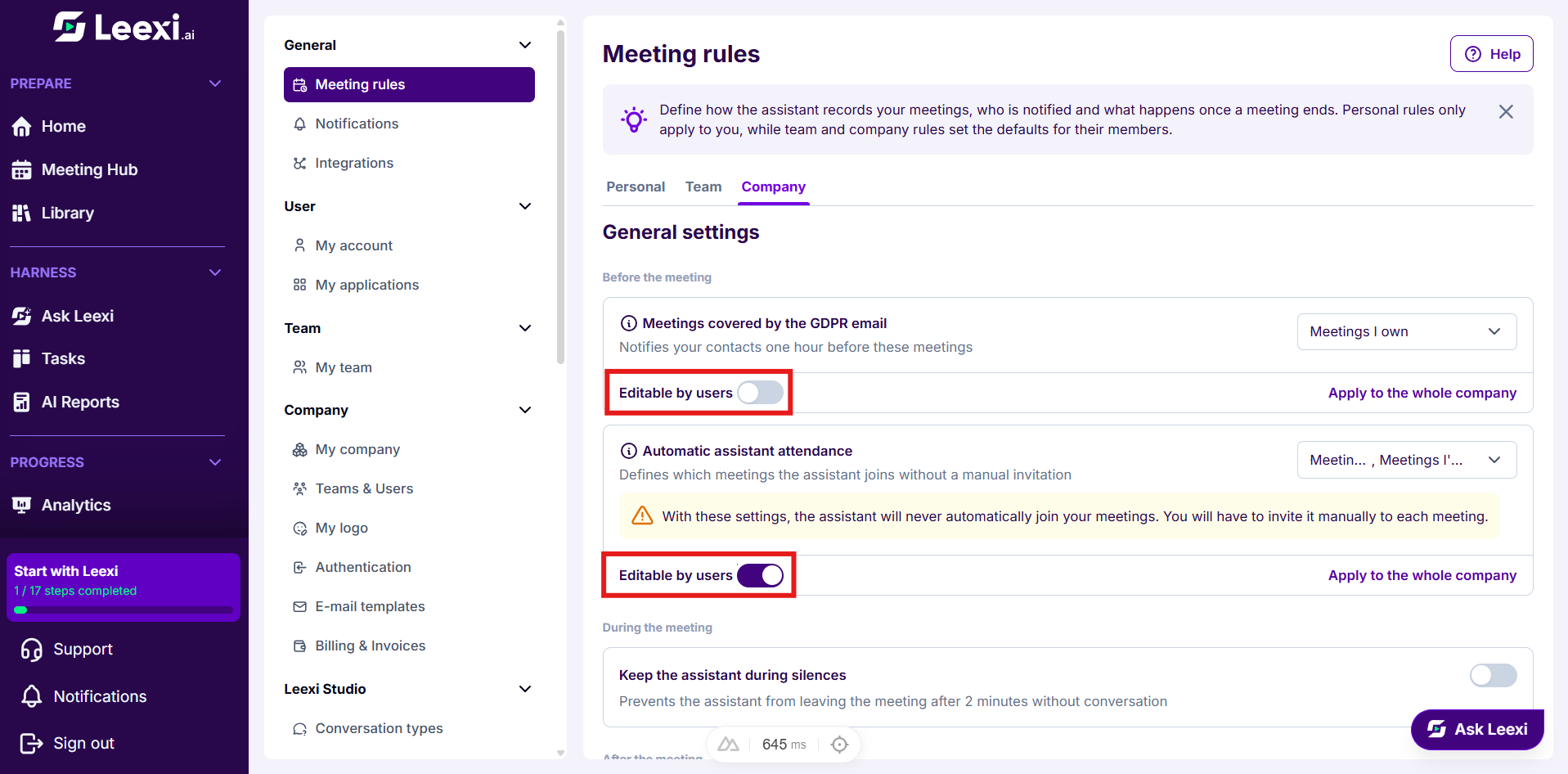
The same lock is also found, grouped with the company's other permissions, on the Permissions page.
Apply a setting to everyone
On the Team and Company tabs, an Apply to the whole team or Apply to the whole company button pushes the block's setting to all the members concerned. A confirmation warns you that members' current choices will be replaced. The pseudonymization block has no such button: its team or company value applies on its own.
Going further
- Team and company defaults only serve members who have not made their own choice: applying a setting to everyone is the only way to realign what already exists.
- A locked setting stays visible to members: they understand the rule without being able to work around it.
- Automatically joined meetings also depend on your connected calendar: with no calendar linked, the assistant has nothing to join.
- Language, time zone and minimum call duration settings are not here, but on the My account, My team and My company pages.
Frequently asked questions
Things to watch out for
- Do not remove every automatic attendance combination by accident: the assistant will then have to be invited manually to every meeting.
- "Everyone" as summary recipients sends the meeting notes to contacts outside your company: make sure that is the intention.
- Pseudonymization applies to content generated after it is enabled, not retroactively to meetings already processed.
- Disabling validation by reviewers immediately publishes the calls under review.