

Microsoft Copilot
Who is this for?
- For Copilot Studio users who want to query their calls and Leexi documentation from a Copilot agent.
- For Microsoft 365 and Power Platform administrators who need to authorize this connection for their organization.
Permissions and licenses
- Access to Copilot Studio, through any of: a Microsoft 365 Copilot license, a standalone Copilot Studio subscription, pay-as-you-go billed to Azure, or a trial license (the trial cannot publish the agent).
- MCP tool calls consume Copilot Credits: the Microsoft 365 Copilot zero-rating doesn't cover third-party tool calls.
- On the administrator side: the Dataverse (Common Data Service) entitlement enabled on the Microsoft 365 license, generative AI features turned on in Power Platform, and no data policy (DLP) blocking third-party connectors.
- An active Leexi account on a paid plan, with at least one processed call.
How to use it
MCP server URL: https://api.leexi.ai/mcp
Open your agent in Copilot Studio
Go to Copilot Studio, then open the agent that should use Leexi (or create a new one). The MCP wizard is reached from a specific agent, not from the general settings.
Turn on generative orchestration
In the agent settings, turn on generative orchestration. MCP doesn't work without it: the generative orchestrator is what decides to call the Leexi tools.
Create a Model Context Protocol tool
From the agent, go to Tools, select Add a tool, then New tool, then select Model Context Protocol.
Fill in the server details
Enter:
- Server name:
Leexi - Server URL:
https://api.leexi.ai/mcp - Server description: for example "Search and read Leexi call recordings, AI summaries, follow-up tasks, and Leexi product documentation."
The agent orchestrator relies on this description to decide when to call Leexi, so write it clearly and explicitly.
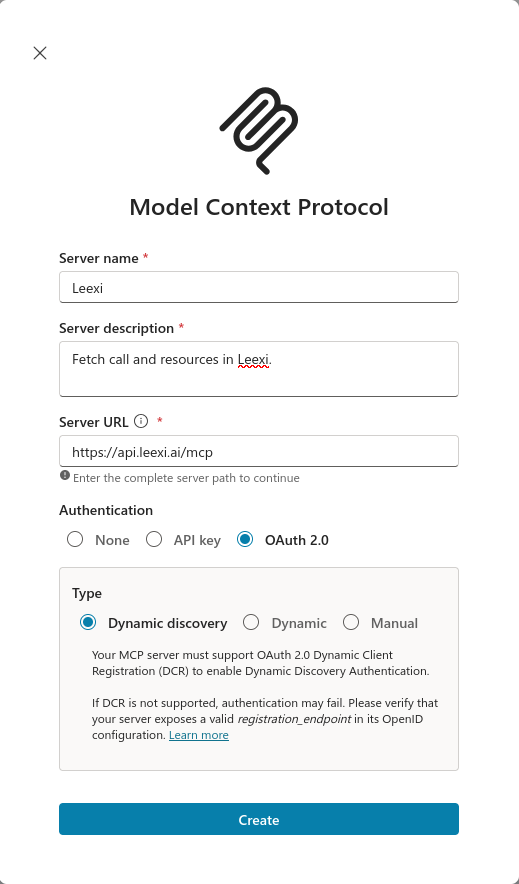
Configure authentication
As the authentication type, choose OAuth 2.0, then the Dynamic discovery type. Leexi supports dynamic client registration and automatic endpoint discovery: there is no Client ID or secret to enter. The default type (None) causes a silent "Unauthorized" error on every tool call.
Create the tool and the connection
Select Create. In the Add tool dialog, select Create a new connection, sign in with your Leexi account, then select Authorize.
Add the tool to the agent
Select Add to agent. The Leexi tools then appear in the agent's Tools tab, where you can turn them on or off individually.
Publish the agent
Publish the agent so your users can reach it from Copilot Chat, Microsoft Teams, or SharePoint. Without publishing, the agent (and therefore Leexi) stays available only in the Copilot Studio test panel.
Going further
Other connection methods
Reserved for administrators, two other methods lead to the same result:
- A custom connector created in Power Apps from an OpenAPI file that declares
x-ms-agentic-protocol: mcp-streamable-1.0on thePOST /mcpoperation. - Registering Leexi as a governed MCP server (BYO MCP) through the Agent 365 CLI, with approval in the Microsoft 365 admin center (in preview).
For a standard user, the wizard described above remains the supported method.
What you can do once connected
| Tool | What it does |
|---|---|
query_calls | Searches your calls by date, participant, team, client, and more |
fetch_call_details | Retrieves the full summaries, follow-up tasks, and metadata of specific calls |
query_resources | Searches Leexi's product documentation |
fetch_resource_details | Retrieves the full content of documentation articles |
Frequently asked questions
Make sure your account contains processed calls with completed transcriptions, and try broadening your search by removing filters.
Copilot Studio also downgrades predefined value lists to plain text: Copilot can therefore pass a team, user, or conversation type name that doesn't exist in your Leexi workspace. Retry the request with the exact name as it appears in Leexi.
api.leexi.ai and that you're signing in with the correct Leexi account. If you're using a corporate Microsoft account, check with your IT administrator whether external connections are allowed.Yes, if your organization applies Power Platform data policies (DLP): they also govern MCP servers and their tools. Your administrator has to allow the connector for Leexi to be reachable from the agent.
If the issue persists, contact Leexi support at support@leexi.ai or via the support assistant in Ask Leexi on app.leexi.ai.