

Webex
Who is this for?
- Users who schedule their meetings from Webex.
- Companies using Webex whose calendar is not managed in Google Calendar or Outlook.
Permissions and licenses
- License required: all licenses, calendar integrations are available on all plans.
- Each user connects their own Webex account, no special role is required.
How to use it
Open your personal integrations
From your Leexi account, go to Integrations.
Authorize the Webex integration
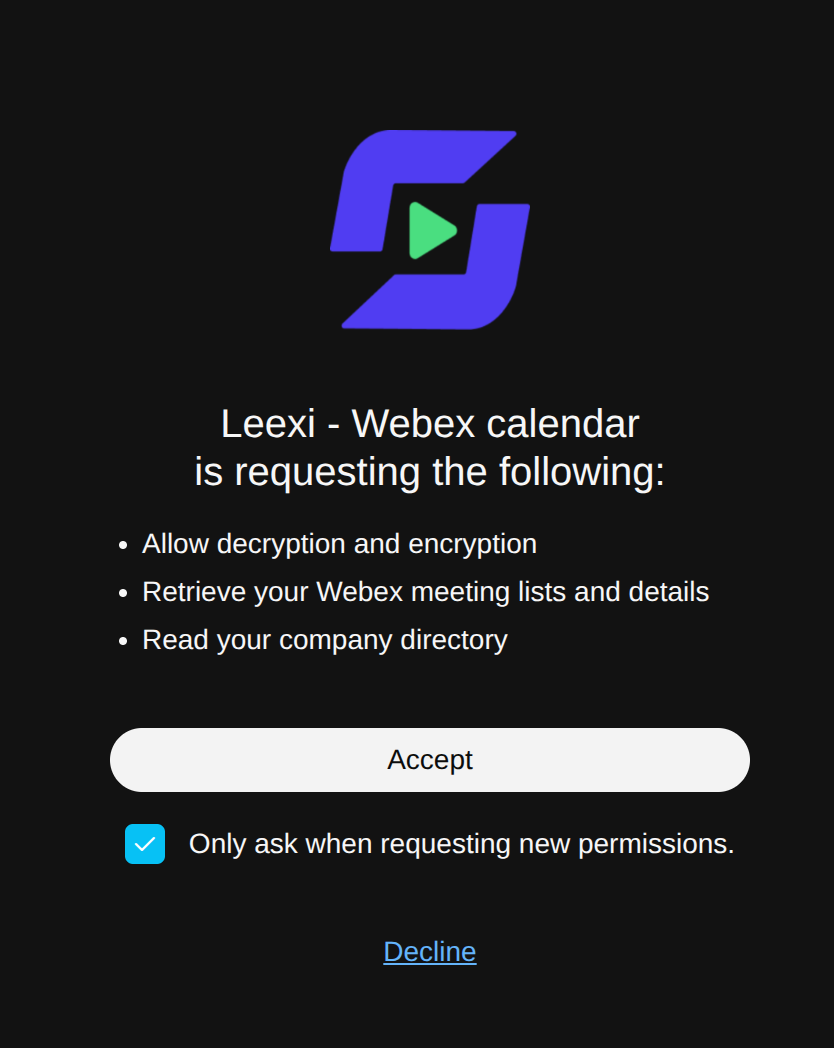
On the Webex card, click Authorize, sign in to your Webex account and then approve the requested permissions. Leexi then accesses the list of your scheduled Webex meetings and your profile, which allows it to automatically send the assistant to record them.
Here are the permissions that must be granted:
Check that your meetings are detected
A few minutes after activation, your upcoming Webex meetings appear on your dashboard under Your upcoming meetings. There you can choose, meeting by meeting, the ones the assistant should join.
Going further
Complement with Google Calendar or Outlook
Webex only gives access to meetings hosted on Webex: Microsoft Teams, Zoom or Google Meet meetings in your calendar remain invisible to this integration.
If your calendar contains meetings from other services, also connect Google Calendar or Outlook. Both integrations work in parallel: each one feeds your upcoming meetings on its side, without duplicates.
Frequently asked questions
Webex does not allow reading your full calendar: only meetings hosted on Webex, where you are the host or an invitee, are retrieved. A Teams, Zoom or Google Meet meeting in your calendar is therefore not visible to this integration.
To cover those meetings, additionally connect Google Calendar or Outlook.
Check the following points:
- the meeting is a scheduled Webex meeting: meetings started instantly from your personal room are not retrieved;
- you are indeed the host or an invitee of that meeting on the Webex account you connected;
- the meeting takes place within the next seven days.
The sync runs every 15 minutes: allow for that delay after creating a meeting before seeing it appear.
These are two complementary steps:
- the Webex page in the Videoconferencing section describes sending the assistant into a Webex meeting, whichever calendar detected it;
- this page describes using Webex as a calendar source, to detect those meetings without going through Google Calendar or Outlook.
If your calendar is already connected via Google Calendar or Outlook, your Webex meetings are detected and this integration is not necessary.
Leexi deactivates the integration when Webex persistently refuses access: authorization revoked from your Webex account, password changed, or Webex license removed. You then receive a notification.
Reconnect the integration from Integrations: your upcoming meetings are detected again at the next sync.
Things to watch out for
- Only scheduled Webex meetings are retrieved: instant meetings and those hosted on another videoconferencing service are not.
- This integration does not replace a full calendar: if your calendar mixes several videoconferencing services, also connect Google Calendar or Outlook.
- The sync runs every 15 minutes: a meeting created at the last minute may not be detected in time.