

Outlook Email
Who is this for?
- Any user who wants to send the AI-generated follow-up email after a meeting without leaving Leexi.
- Personal integration: each user connects their own Outlook mailbox, and emails are sent from their own address.
Permissions and licenses
- Required license: from the Business plan.
- A Microsoft work or school account. Personal Microsoft accounts (outlook.com, hotmail.com) are not accepted.
- One active email integration per user: you cannot connect two sending mailboxes at the same time.
- Each user connects their own account from their personal integrations, unless your company has disabled personal integrations.
- Sending is restricted to users allowed to edit the generated content of the call concerned.
How to use it
Open your personal integrations
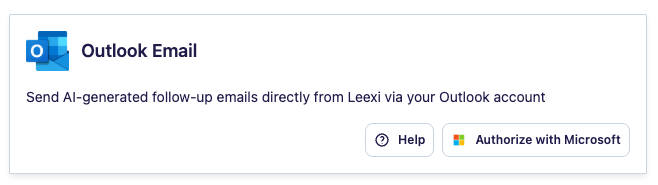
From your Leexi account, go to Integrations. In the Inactive tab, on the Outlook Email card, click Authorize with Microsoft.
Sign in with your Microsoft account
Pick the Microsoft account to connect, then accept the requested permissions. Leexi asks to read your profile, to send emails on your behalf and to keep the connection alive. Leexi never reads the content of your inbox.
Check that the mailbox is connected
You are redirected back to Leexi. The Outlook Email card moves to the Active tab and shows Connected account followed by the address you just authorized.
Open the follow-up email of a call
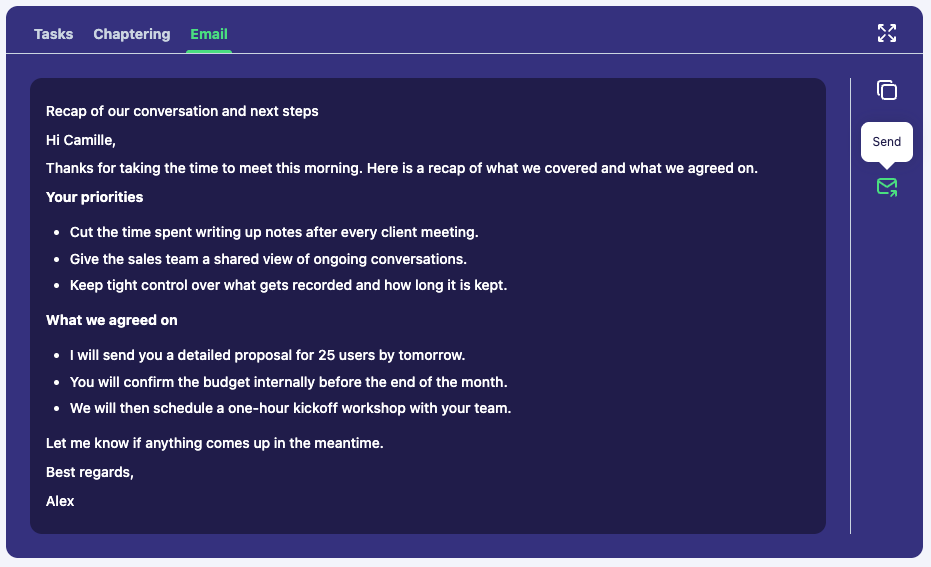
Open a call, then, in the Tasks & follow up panel on the right, select your follow-up email tab. Its name depends on the template configured by your company, for example Email. Then click the Send icon in the icon column on the right of the panel.
Review and send
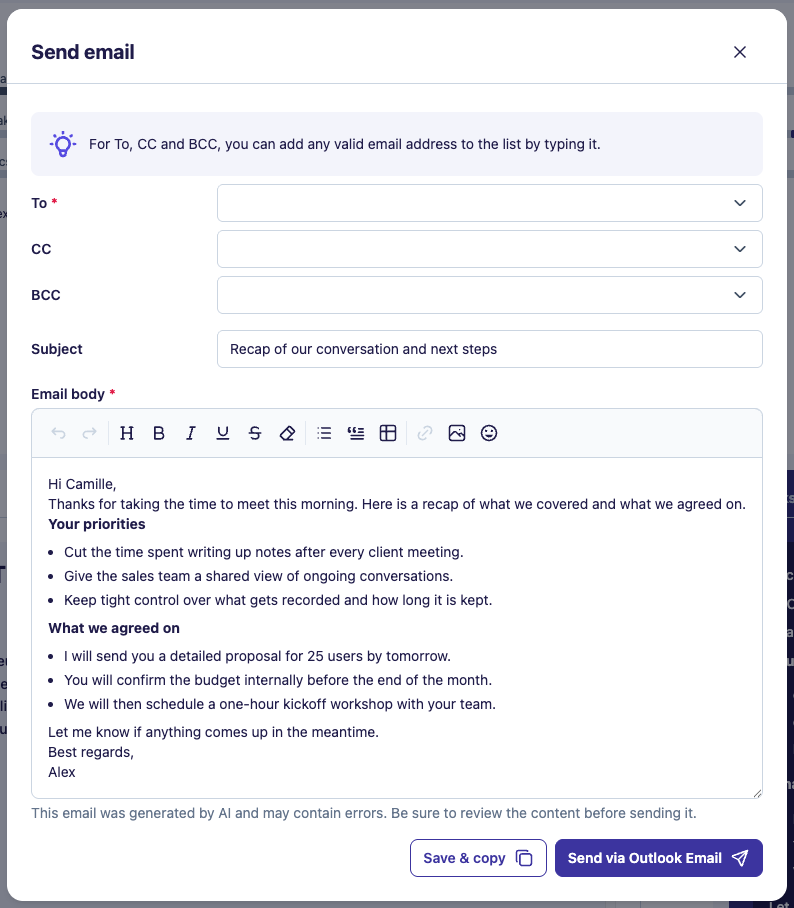
Fill in To, and CC and BCC if needed: the call participants and linked contacts are suggested, and you can add any valid address by typing it. Review the Subject and the Email body, then click Send via Outlook Email and confirm.
That's it! The email is sent from your Outlook address: it appears in your Sent Items and replies reach you directly, without going through Leexi.
Going further
What the email contains
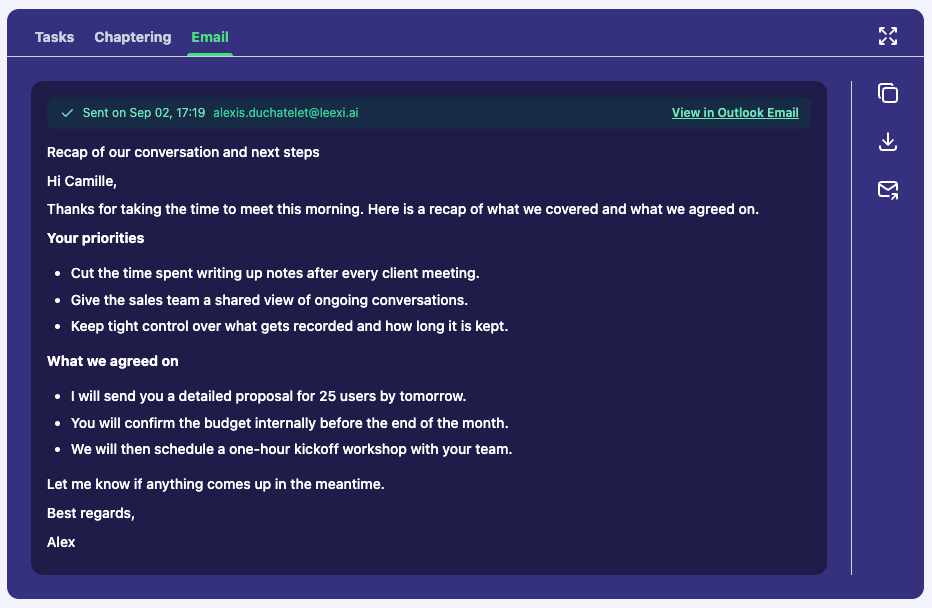
The content is generated by AI from the call: the first paragraph becomes the subject, the rest becomes the body of the message. Everything can be edited before sending, and your changes are saved on the call's draft: you will find them again next time you open it.
The email uses the language selected in the tab. If you switch language, you get a separate draft, with its own sending history.
Sending without connecting a mailbox
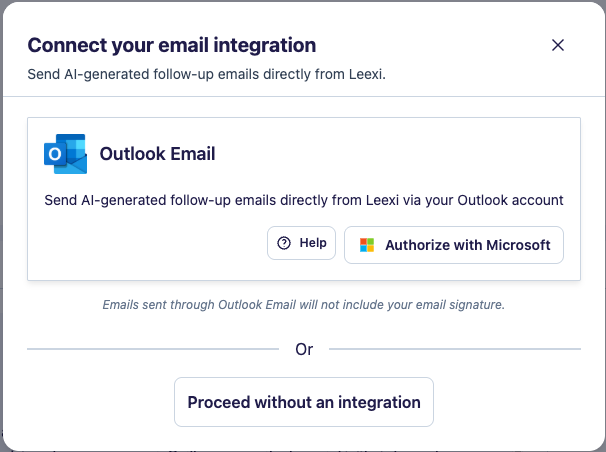
If you would rather not connect your mailbox, click Proceed without an integration when Leexi offers to connect it. You can then review the subject and the body, then use Save & copy to copy the email and paste it into your own mail client.
Tracking emails already sent
Each send adds a green line at the top of the tab: Sent on followed by the date and the list of recipients. The View in Outlook Email link opens your Sent Items folder — since Microsoft does not return a message identifier to Leexi, the link cannot point directly at the email concerned.
Changing sending mailbox
To connect a different sending mailbox, first deactivate the current integration from Settings > General > Integrations, Personal tab, then connect the new one. Emails already sent stay visible in the call's history.
Frequently asked questions
Three possible reasons, shown by the button's tooltip:
- You already have an active email integration: deactivate it before connecting another one.
- Your company does not allow new personal integrations to be activated.
- Your current license does not give access to this feature: it requires the Business plan. In that case the card does not appear at all in Integrations.
Check these three points:
- You must be allowed to edit the generated content of the call concerned.
- If the call is under review, the icon is disabled and shows Review in progress....
- Sending is only available on a large screen: on mobile, the tab only offers to copy the content.
Contact your Microsoft administrator: they will have to approve the application by following these instructions: Review admin consent requests. Once the application is approved, start the connection again.
Your Microsoft administrator can grant admin consent to the Leexi application so that every user in your company can connect their mailbox without going through an individual approval.
Leexi deactivates the mailbox and sends you an email as soon as Microsoft refuses the send for an access reason: changed password, revoked authorization, disabled account or a security rule in your organization. Reconnect the mailbox from Settings > General > Integrations, Personal tab.
The integration is also deactivated if your company moves back to a license below Business.
Things to watch out for
- The email is sent from your own Outlook address, never from a Leexi address: review the content before sending, it commits you.
- The content is generated by AI and may contain errors or approximations about the commitments made during the call.
- No signature is added automatically.
- Attachments are not supported: the email only contains formatted text.
- Nothing prevents the same follow-up email from being sent several times: each send adds a line to the history, so review it before sending again.
- If the send fails, the window stays open with your draft intact: you can retry without retyping the content.