# SharePoint
> Automatically create a Word document per call in the Apps/Leexi Sharepoint folder of your SharePoint.
- For all users who want to find their meeting notes in SharePoint.
- License required: depending on your plan, check availability in Settings > General > Integrations.
- Each user connects their own Microsoft account from their personal integrations.
#### How to use it
Estimated time: 2 minutes.
### Authorize the SharePoint integration
From your Leexi account, go to [Integrations](https://app.leexi.ai/en/settings/integrations/user), find the SharePoint integration and click **Authorize with Microsoft**.
### Accept the requested permissions
Then accept the permissions requested by Microsoft.
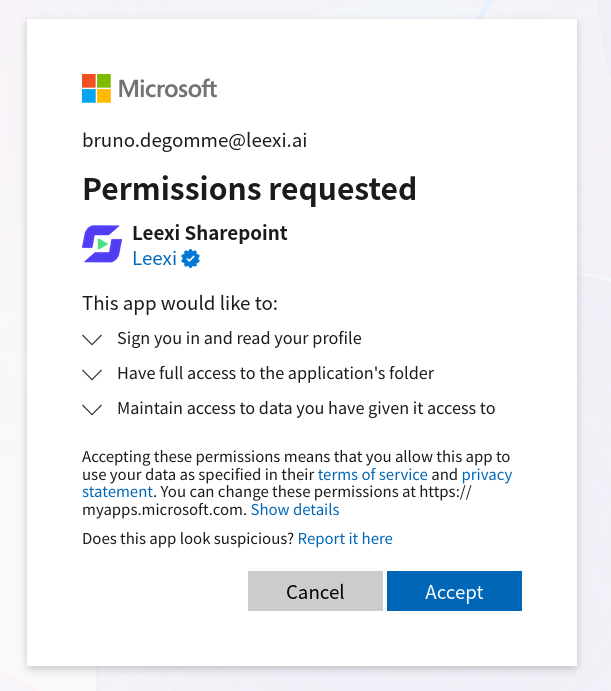
Note: "Have full access to the app folder" means Leexi has no access to any of your personal files in your SharePoint. Leexi can only create and update notes in the `Apps/Leexi Sharepoint` folder.
### Find your documents
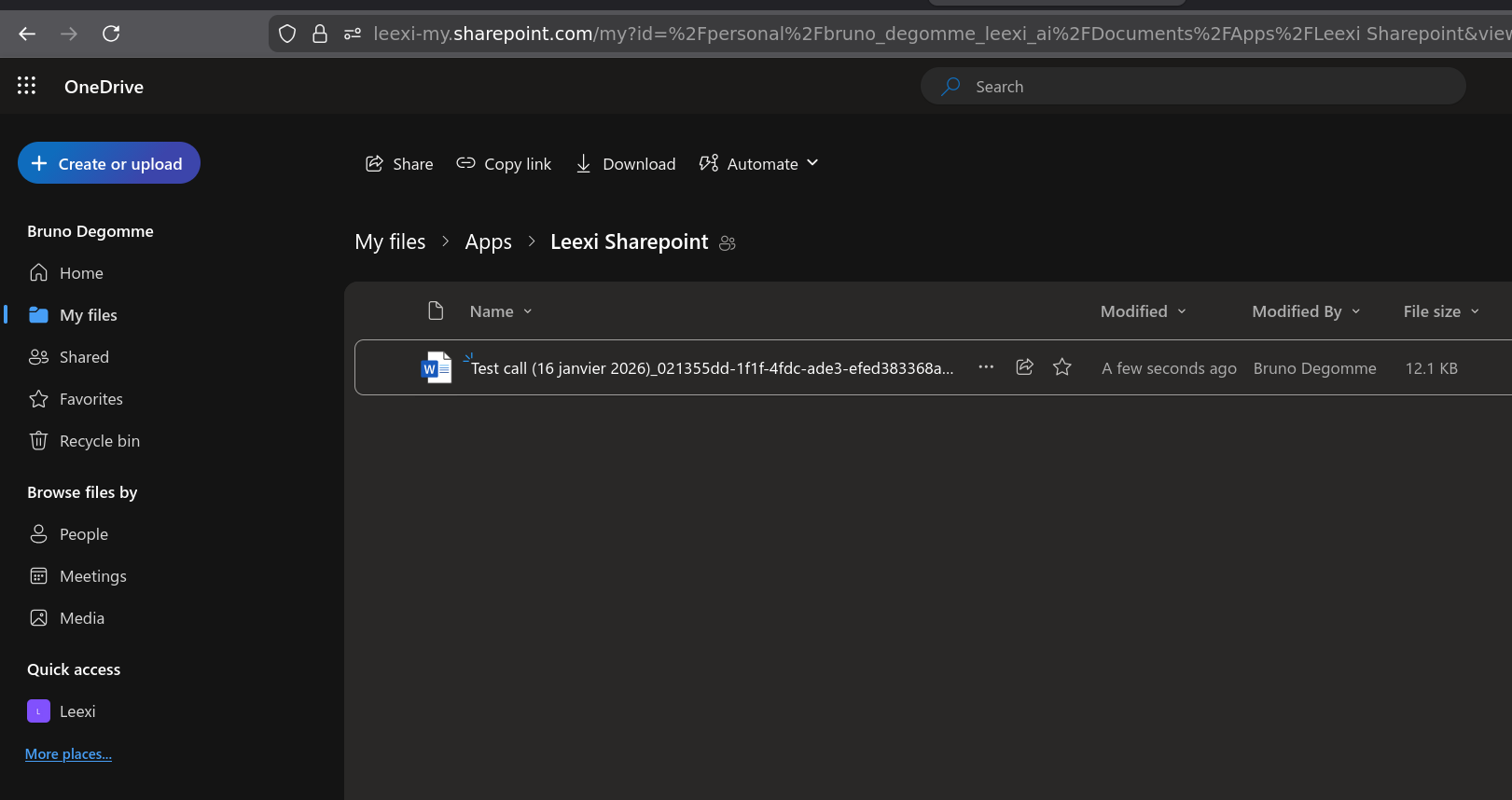
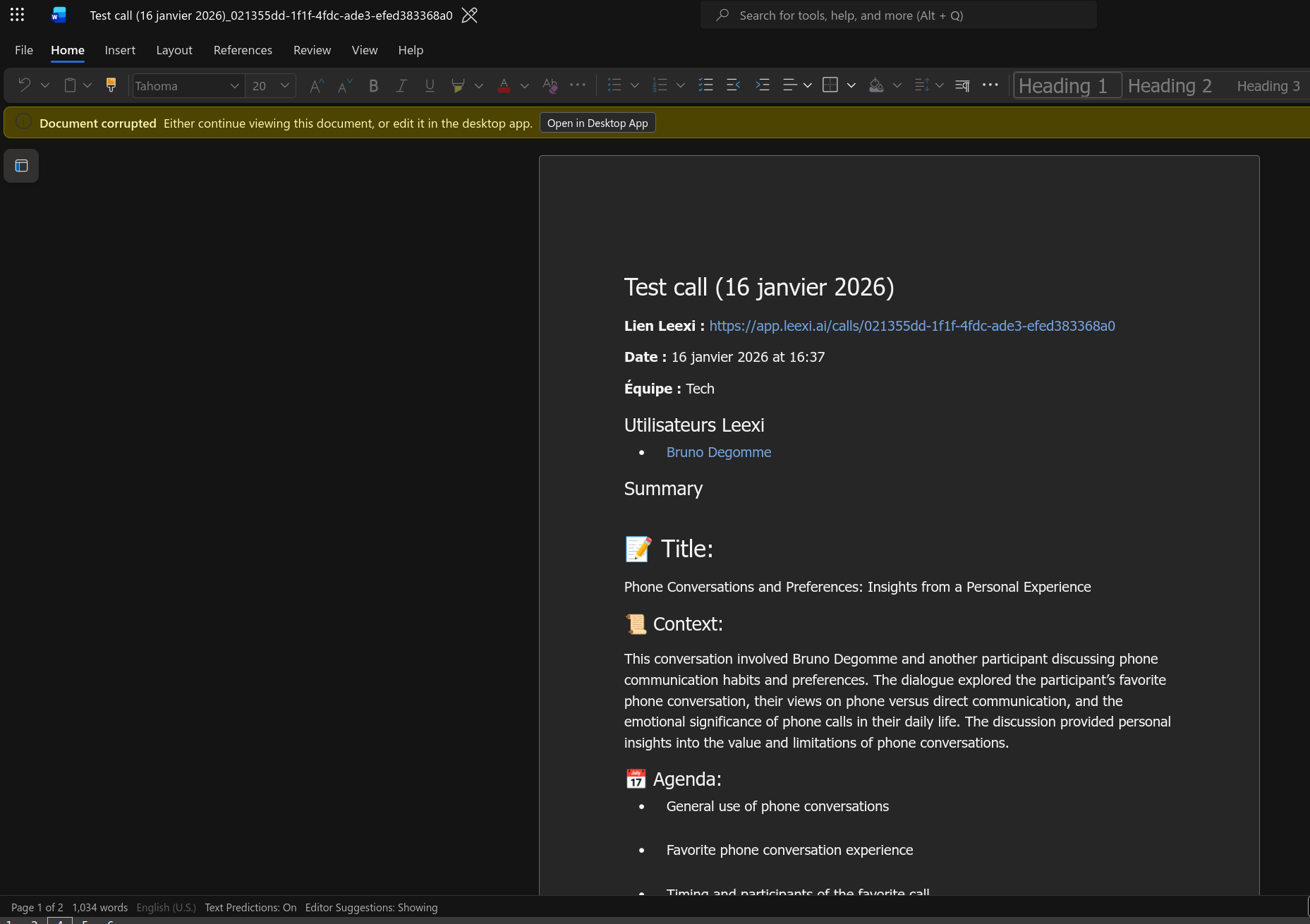
Once the integration is enabled, a Word document is created for each call you take part in, in the `Apps/Leexi Sharepoint` folder. Here's what it looks like.
## Frequently asked questions
Contact your Microsoft administrator: they will need to approve the application by following these instructions: [https://learn.microsoft.com/fr-fr/entra/identity/enterprise-apps/review-admin-consent-requests](https://learn.microsoft.com/en-us/entra/identity/enterprise-apps/review-admin-consent-requests?source=recommendations). Once the application is approved, restart the activation flow.
Your Microsoft administrator can grant admin consent to the Leexi application so that every user in your company can enable their integration without going through an admin approval.
The full message is: "AADSTS50105: Your administrator has configured the application to block users unless they are specifically granted ('assigned') access to the application." Your Microsoft administrator must follow these steps:
- log in to the [Azure portal](https://portal.azure.com/) ;
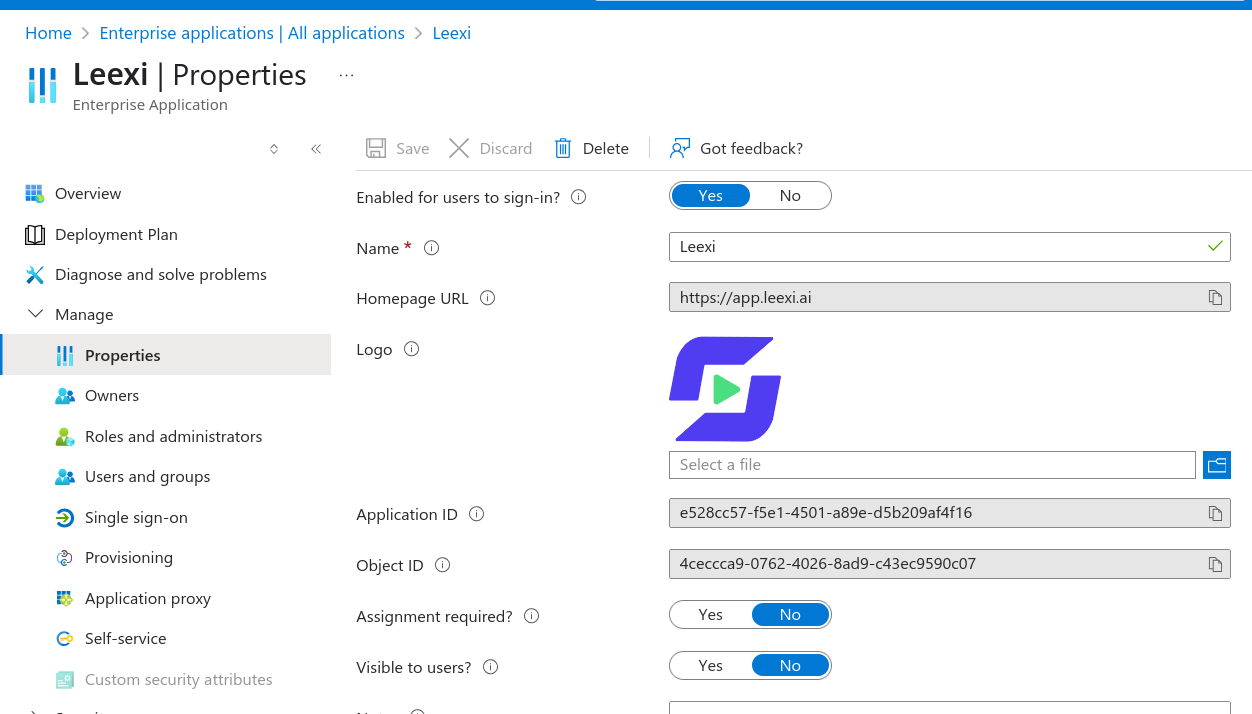
- go to **Enterprise applications** and select the **Leexi** application ;
- go to **Manage → Properties** and check that **Assignment required?** is set to **No**.
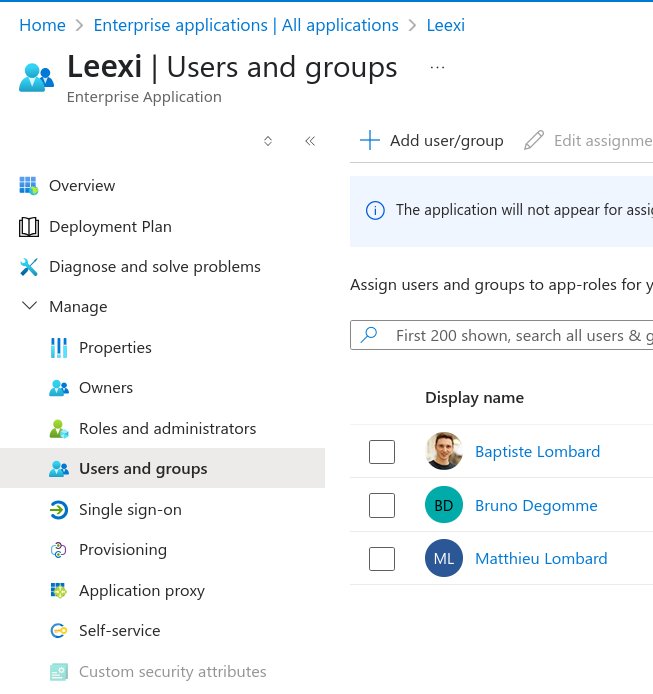
- Alternatively, go to **Users and groups** and add the relevant user.
## Things to watch out for
- Leexi only accesses the `Apps/Leexi Sharepoint` folder: no other file in your personal SharePoint is readable by Leexi.
## Previous and next pages