# Document templates
> Have the AI fill in your own Word templates after each meeting.
**Definition:** Document templates turn your own Word files (meeting notes, qualification sheet, site visit report…) into documents the AI fills in automatically at the end of each meeting. You keep your company's layout, logo and colors, and get a ready-to-use file without copying information by hand.
**Feature video**
No video is available at this time.
- Teams that must produce a standardized document after their meetings: client meeting notes, qualification sheet, intervention report, minutes.
- Administrators who prepare these templates for the whole organization.
- Required:
- Creating and managing templates is reserved for **Company managers**, **System admins** and **Super admins**.
- The generated document is visible to anyone who has access to the call.
- The feature is in beta.
#### How to use it
### Open document templates
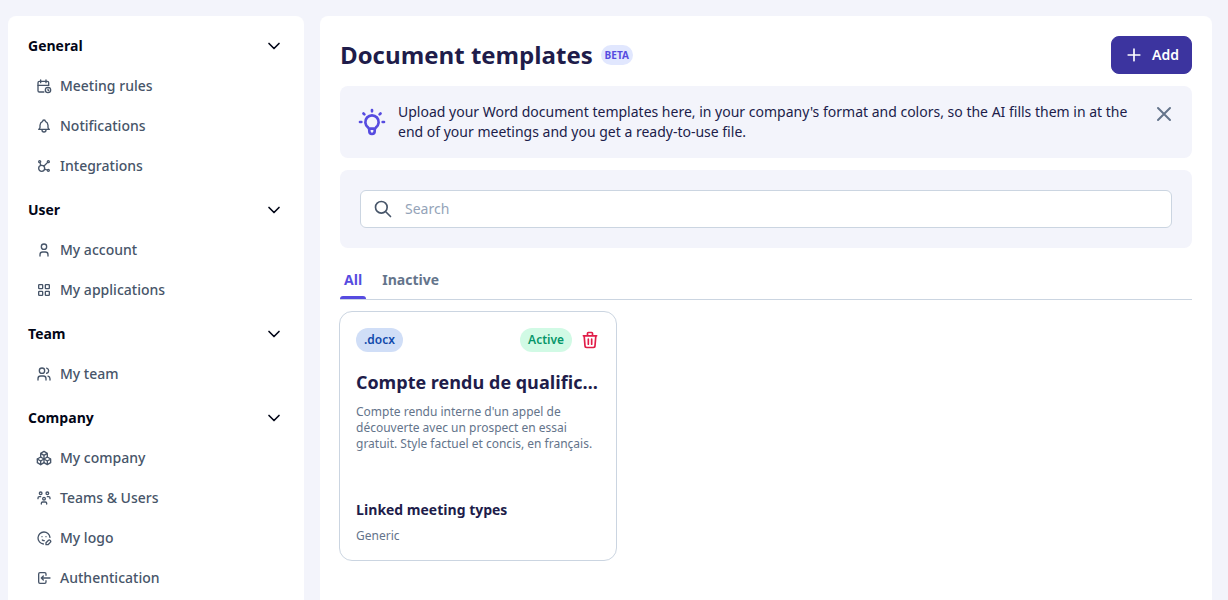
Go to **Settings > Leexi Studio > Document templates**, then click "Add".
The page lists your templates with the `All` and `Inactive` tabs, and a search bar by title. Each card shows whether the template is active or still a draft, and the meeting types linked to it.
### Upload your Word file
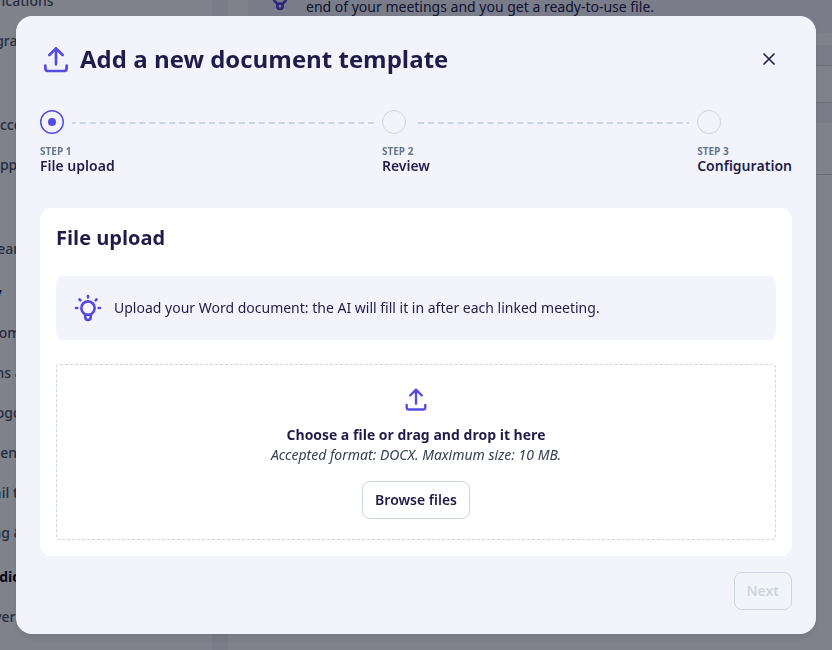
Drop your document in `.docx` format (10 MB maximum), then click "Next". Use your template as it is today, with its fields to complete: blanks, `[brackets]`, checkboxes, example rows in tables.
### Check the detected variables
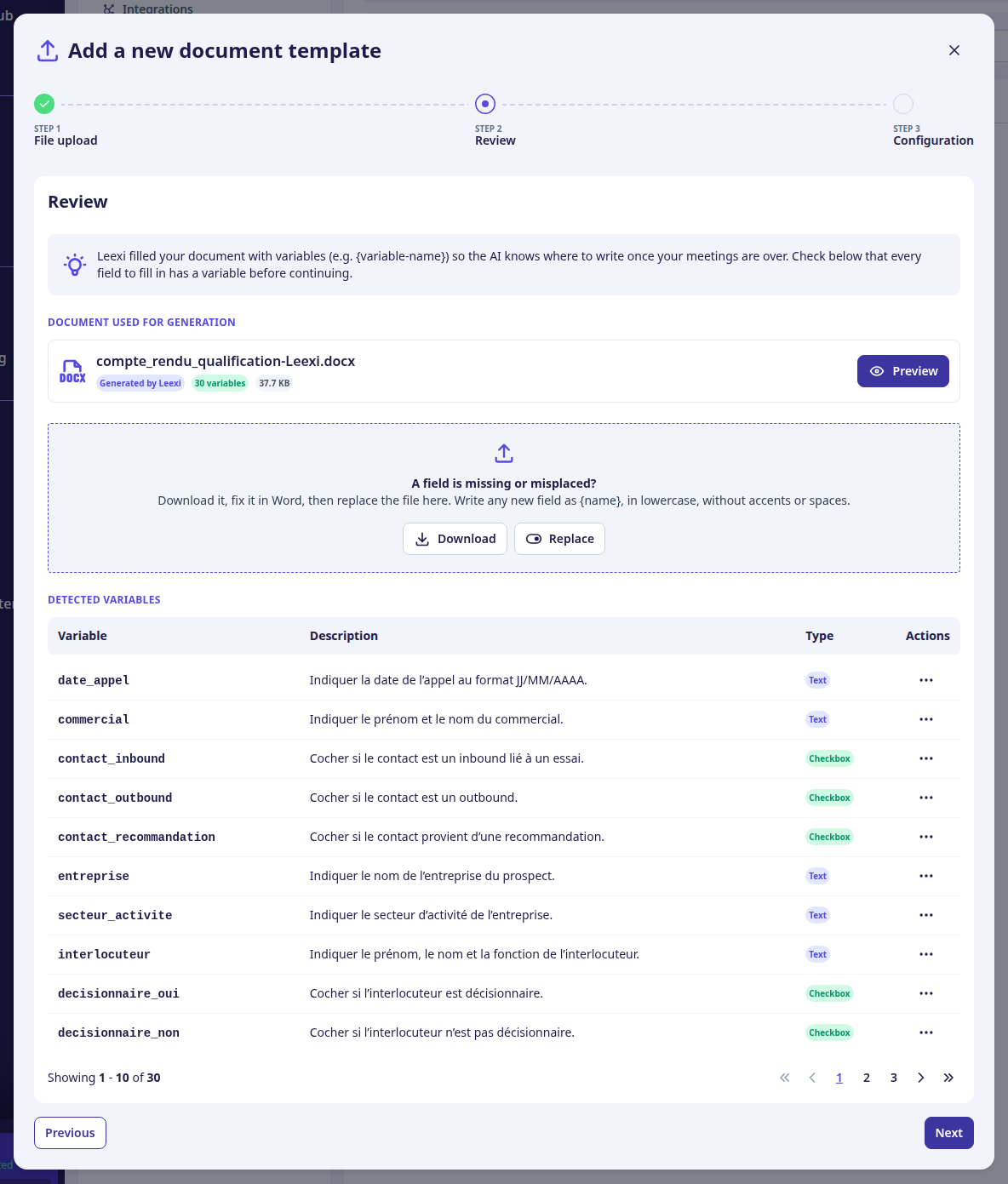
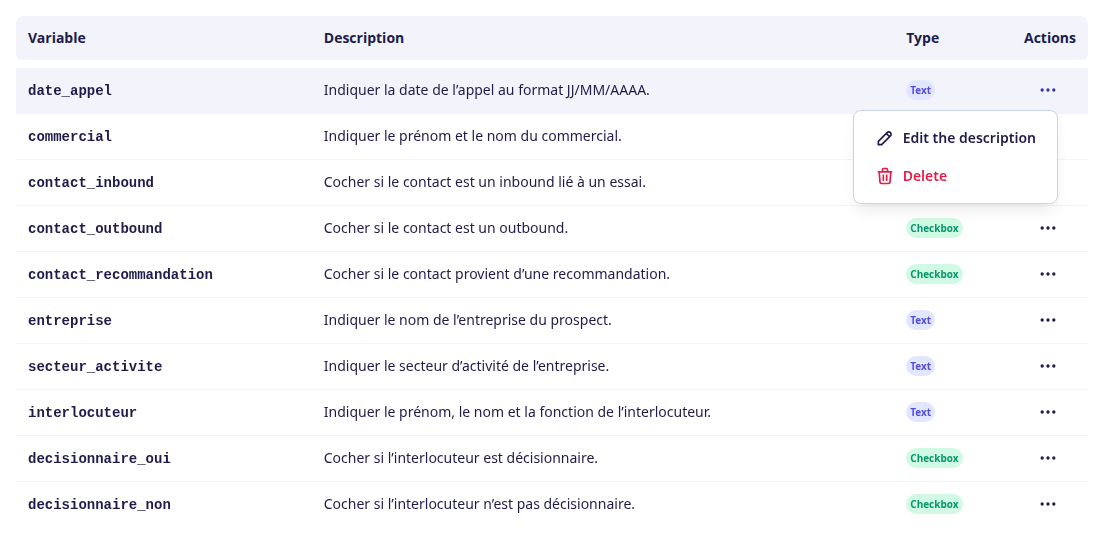
Leexi analyzes the file and places a variable, for example `{date_appel}`, everywhere the AI will need to write. The analysis can take a few minutes for long documents.
Each variable has a type:
- **Text**: a value or a paragraph.
- **List**: a bulleted list, with as many items as needed.
- **Checkbox**: a box that is checked or not.
- **Table**: a table to which the AI adds as many rows as needed.
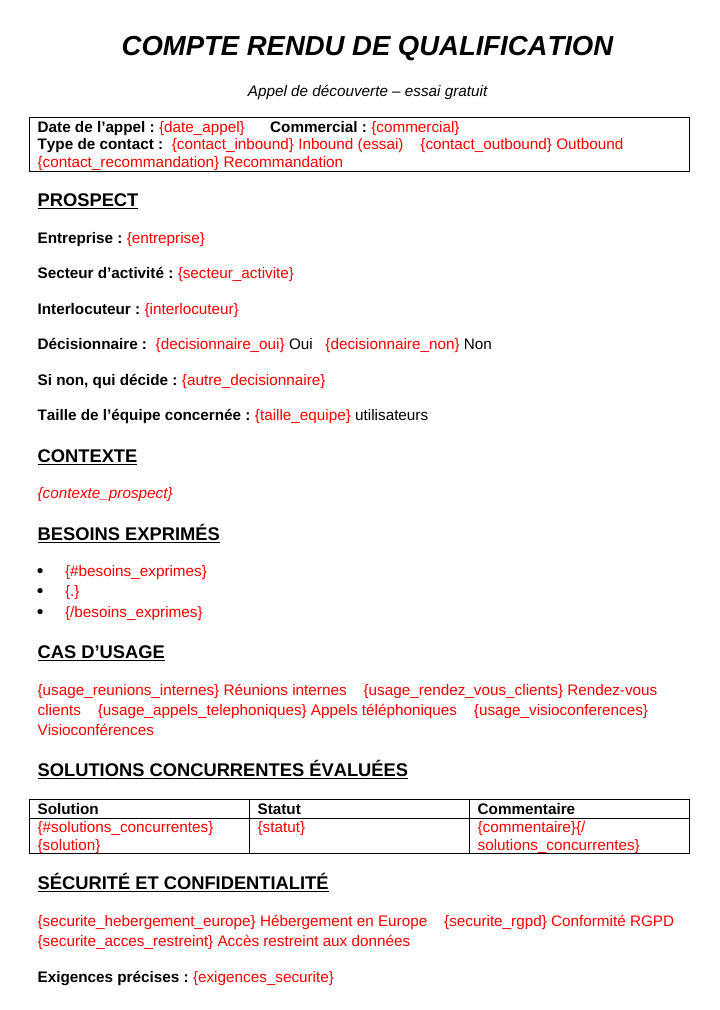
Click "Preview" to open the document as a PDF, with the variables in red: you see at a glance what the AI will fill in.
The menu of each variable lets you edit its description, which tells the AI what to write, or delete it. The original text of a deleted variable is kept as is in the generated documents.
### Fix the file if needed
If a field is missing or misplaced, click "Download", fix the file in Word, then click "Replace" to upload it again. Write each new field as `{name}`, in lowercase, without accents or spaces.
Leexi keeps your variables exactly as you wrote them and only describes them. If the corrected file is rejected, the previous version is kept.
### Configure and validate
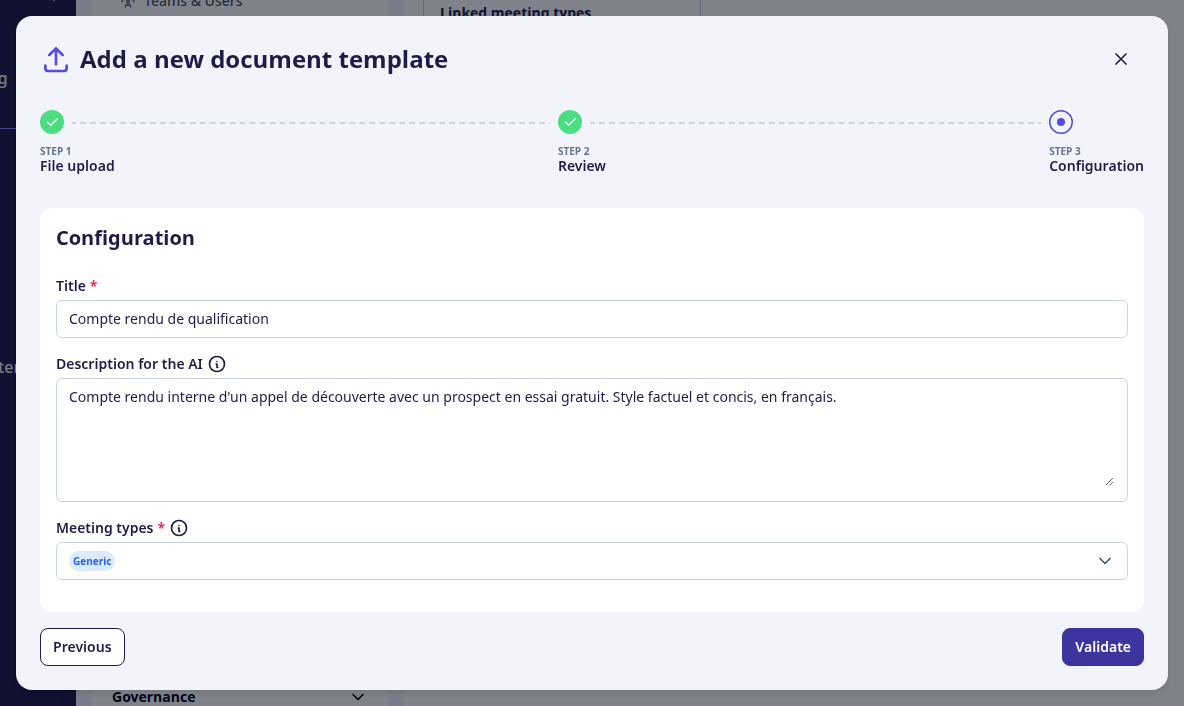
Fill in the title, a description for the AI (what the document is used for, the tone to use…) and the meeting types for which the document should be generated. Then click "Validate": the template becomes active.
### Find the document after the meeting
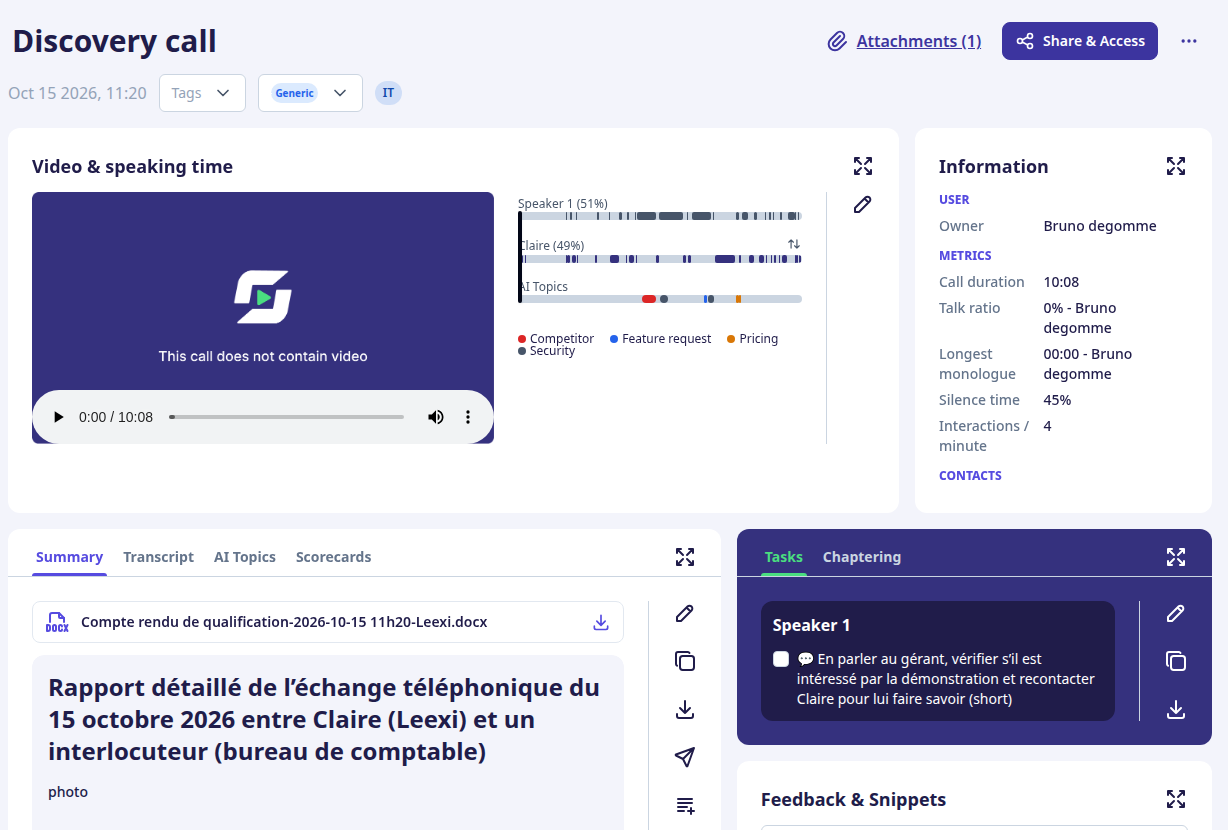
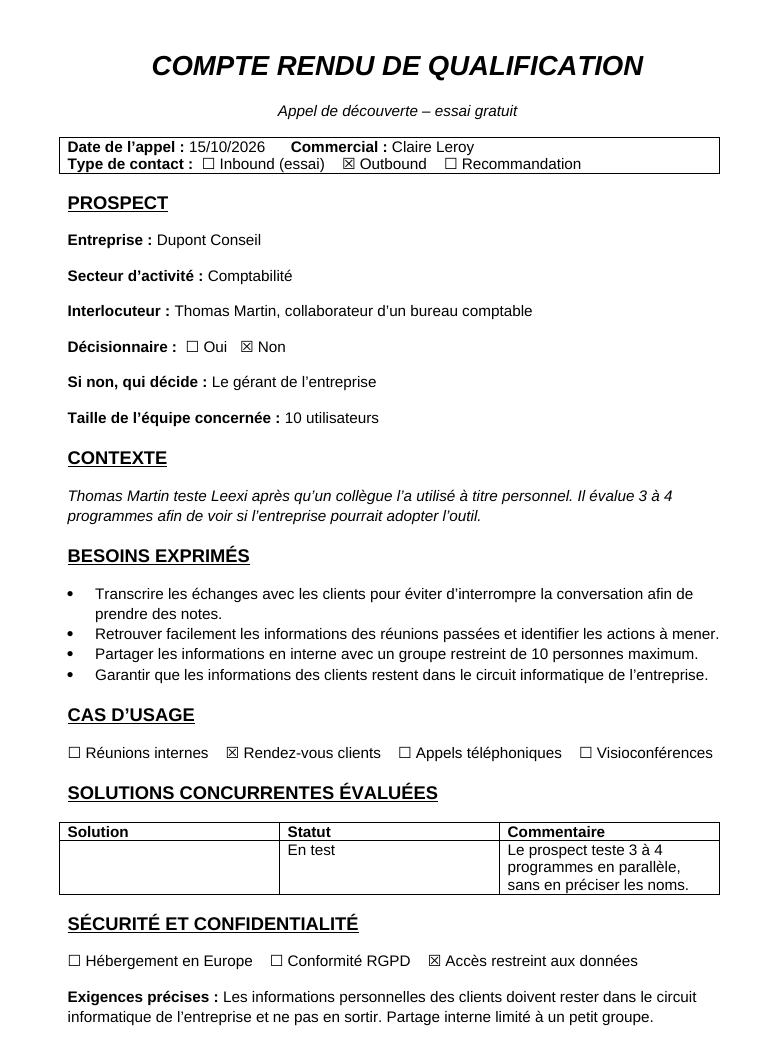
After each meeting of a linked type, the AI fills in the template from the transcript, at the same time as the summary. The document appears above the summary on the call page.
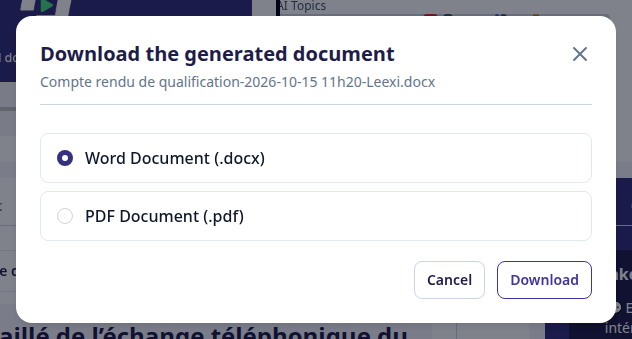
Click the download icon to get it in Word or PDF format.
The Word file is also attached to the email sent after the meeting.
## Going further
- On top of the transcript, the AI receives the meeting information: title, date, times, duration, participants and their company, and the linked CRM deal. Fields such as the date, the contact or the company are therefore filled in well even when nobody says them out loud.
- A precise variable description gives better results: state the expected format ("in DD/MM/YYYY format"), the length or the possible values.
- A text field the AI cannot fill in keeps its original text (`[place]`, `…`), so the reader sees what is left to complete.
- To pause a template without deleting it, open it and deactivate it: it then appears in the `Inactive` tab.
- If a call's meeting type changes afterwards, the document is regenerated with the new type's template, or deleted if that type has no template.
## Frequently asked questions
No. A meeting type can only be linked to one document template. A single template, however, can be linked to several meeting types.
Replacing the file, or editing or deleting a variable of an active template, sends it back to draft. It no longer generates documents until you click "Validate" again. Changing the title, the activation or the meeting types does not change its status.
No. Download it in Word format to touch it up before sharing it.
Not automatically: the document is generated for meetings that end after the template is validated. To get the document for a past meeting, switch it to a meeting type linked to the template from the call page.
## Things to watch out for
- Only the `.docx` format is accepted, up to 10 MB and 100 variables.
- Text placed inside Word text boxes is not detected: move it out of the text box before uploading.
- The document is filled in by the AI and remains subject to its limits (omissions, misinterpretations): proofread it before sending it to a client.
- The document is not visible on shared call pages.
- The post-meeting email only contains the Word version, and only if the file is under 10 MB. The document is always available on the call page.
## Related articles
- [Custom Summaries](/en/guides/customization/custom-summaries)
- [Conversation Types](/en/guides/customization/conversation-types)
## Previous and next pages